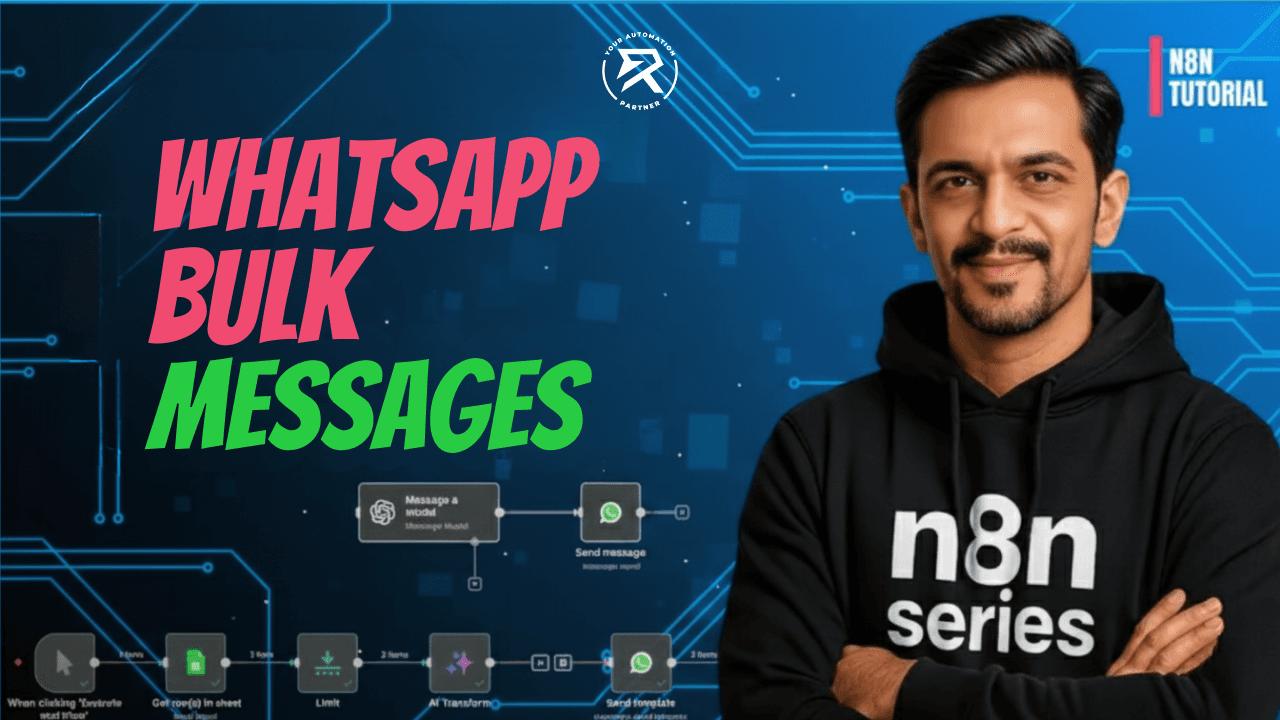
How to Send Bulk WhatsApp Messages in n8n
Key Pointer:
Reach More People: Send messages to thousands of customers automatically without typing them one by one.
Easy Contact Lists: Connect Google Sheets to send bulk messages directly to your saved contacts.
Make It Personal: Use "templates" to automatically add names and offers for every single customer.
Track Everything: See exactly when your message is sent, delivered, or if it failed—in real time.
Smart Formatting: Let AI fix messy phone numbers for you so every message goes to the right person.
Table of Contents:
Understanding WhatsApp Automation with n8n
Why Use n8n for WhatsApp Automation?
Setting Up WhatsApp Template Messages
Configuring the WhatsApp Send Template Node
Tracking Message Delivery Status in n8n
Sending Bulk WhatsApp Messages from Google Sheets
Advanced Ideas and Best Practices
Addressing Common Errors
Video Tutorial: How to Automate Bulk WhatsApp Messages
Conclusion: Automating WhatsApp for Business
Frequently Asked Questions (FAQs)
Automating WhatsApp messaging is a powerful way for businesses to scale communication without increasing manual workload. Automation lets you reach large audiences instead of sending messages one by one from a WhatsApp number. It keeps messages consistent, follows rules, and personalizes them.
With n8n Workflow Automation, you can:
Send bulk WhatsApp template messages using the WhatsApp Business API and WhatsApp Business Cloud API
Track message delivery, message status, and delivery status updates in real time
Update results automatically in Google Sheets using structured contact data
This guide explains the full WhatsApp Workflow. It covers WhatsApp Setup, template approval, delivery tracking, error handling, and reporting. It also shows how each n8n Workflow part fits together.
Understanding WhatsApp Automation with n8n
n8n is a powerful workflow automation platform that enables teams to build flexible automation flows using visual nodes. These nodes represent triggers, actions, and integrations such as APIs, databases, and messaging platforms.
When integrated with the WhatsApp Business Cloud API (available through Meta for Developers and a Meta Developer Account), n8n allows businesses to:
Automate WhatsApp messaging for campaigns, notifications, and lead nurturing
Send WhatsApp template messages that comply with Meta policies
Process Customer Inputs and trigger automation flows dynamically
Support use cases for customer support, support teams, community managers, and event coordinators
This approach allows automation to grow and follow policies. It manages message format, rate limits, and delivery reliability.
Why Use n8n for WhatsApp Automation?
Many people use n8n because it gives detailed control over automation flows. It is also easy for non-developers to use. It bridges the gap between simple tools and complex custom development.
Businesses choose n8n for WhatsApp automation because it allows them to:
Build no-code or low-code n8n Workflows for WhatsApp messaging
Send marketing, utility, or authentication messages using approved WhatsApp template messages
Track message status, pending messages, and delivery status updates
Integrate Google Sheets, CRMs, and databases via Google Sheets API credentials
Handle API rate limits, Meta conversation charges, and message count safely
This makes n8n ideal for scalable automation without sacrificing reliability.
Setting Up WhatsApp Template Messages
Before sending any automated messages, WhatsApp requires businesses to configure approved templates. These WhatsApp template messages define the structure, message format, and allowed variables.
Templates ensure:
Messages comply with WhatsApp Business API rules
Users receive opt-in communications only
Media-rich templates and dynamic placeholders are handled safely
Template creation is part of the WhatsApp Setup process and is completed in WhatsApp Business Manager.
Steps to Prepare Your Template
You must create a WhatsApp template to start conversations from a business. This step ensures your messaging automation remains compliant and scalable.
To prepare your template:
Log in to WhatsApp Business Manager through your Meta Developer Account
Create a new WhatsApp template message, such as Festival Greetings or Promotional Offer
Add dynamic placeholders like
{name},{image}, or other Customer InputsSelect the appropriate category, such as marketing, utility, or authentication
Submit the template and wait for approval (usually one to two days)
Once approved, the template receives a Message Template ID, which becomes selectable inside n8n.
Configuring the WhatsApp Send Template Node
Inside n8n, create a new workflow and choose a manual trigger to start building your automation. Then, add the WhatsApp Business Cloud node and select the operation Send Template.
To enable WhatsApp sending, add the WhatsApp integration:
Click Add node in the n8n editor
Search for WhatsApp Business Cloud API
Select the node and choose Send Template
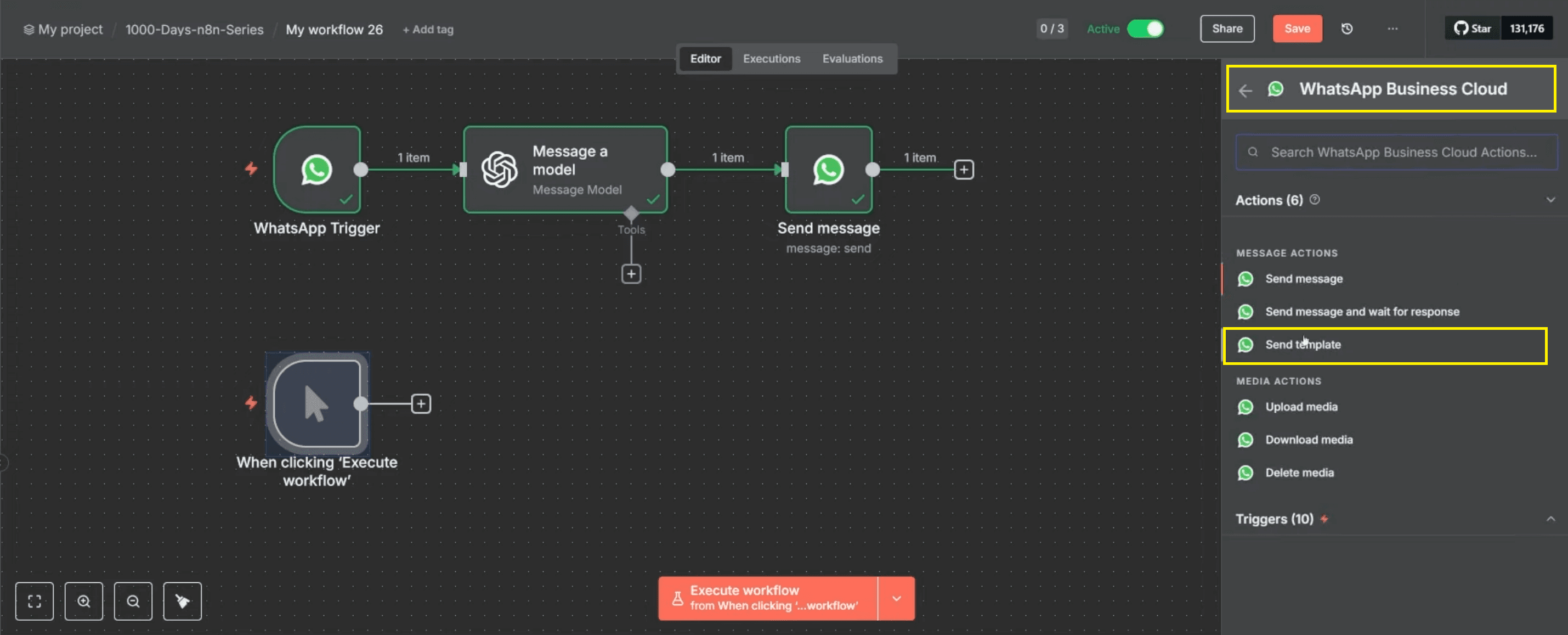
Provide the WhatsApp number, Phone Number ID, and Message Template ID
Authenticate using a Temporary Access Token during testing
This step sends messages via the WhatsApp Business Cloud API while respecting API rate limits and WhatsApp rate limits.
Key Setup Parameters Explained
You must set up the system correctly to deliver messages successfully. Each parameter affects how WhatsApp processes the message.
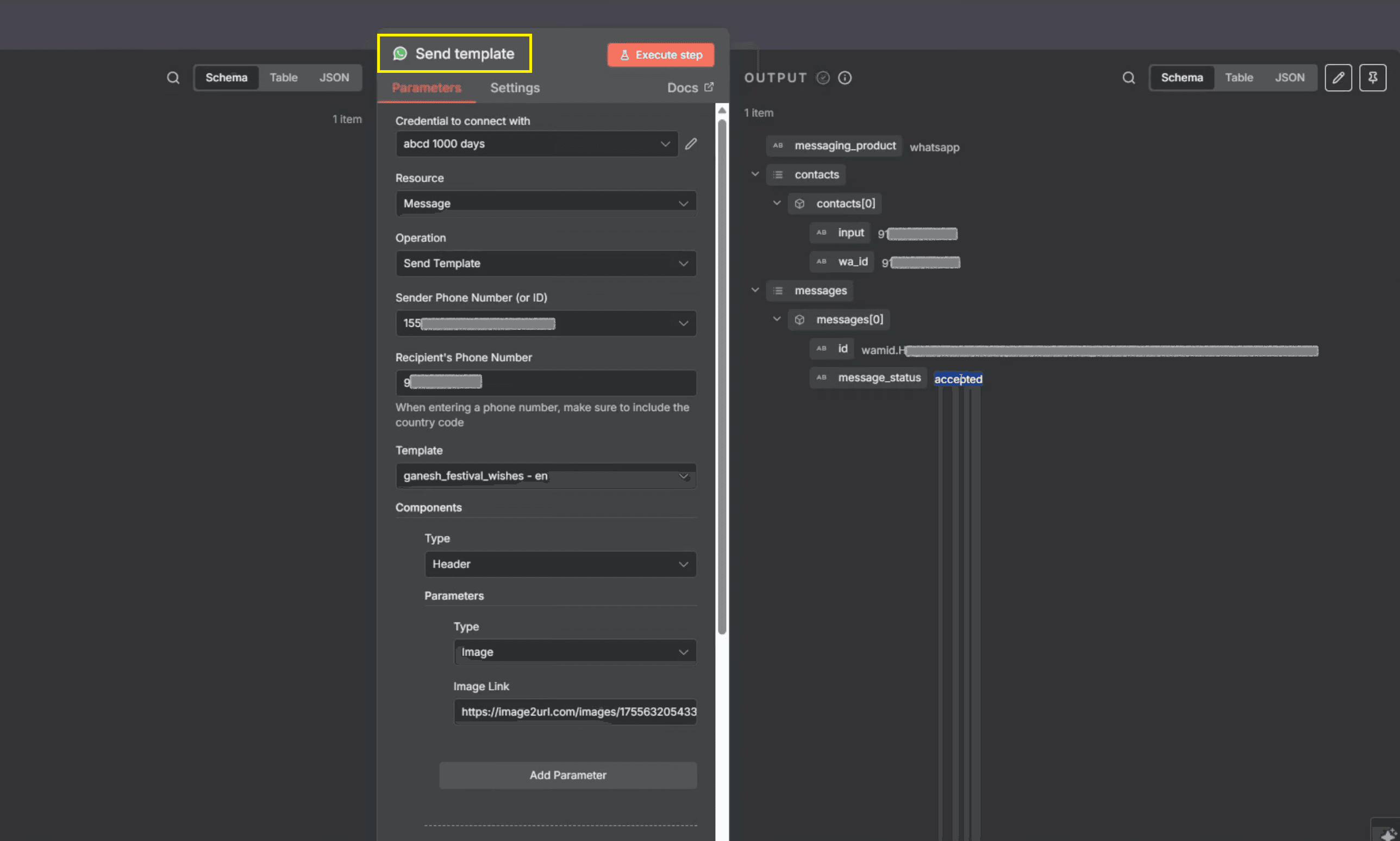
You must carefully configure:
From Number: Ensure you use a business-verified WhatsApp number. Avoid test numbers since messages from them are restricted and temporary.
Recipient Number: Add one or multiple recipient phone numbers (these can be dynamically fetched later from Google Sheets).
Template Name: Select the approved template you created earlier.
Header or Body Variables: Assign parameters such as images or names using “Add Component” options.
Once configured, clicking Execute Step sends the request to WhatsApp, which responds with a Response Code and session ID.
Adding an Image Parameter to WhatsApp Templates
WhatsApp supports Media Files such as images, PDFs, audio, and videos in template headers. These must be provided as public URLs.
To add an image:
Upload the image to a public hosting service
Use tools like imagetourl.com to generate a public URL
Paste the URL into the template’s media field
These media-rich templates improve engagement for lead nurturing, promotions, and event messaging.
Also Read: WhatsApp Automation (Part 1): Set Up Meta Business API
Tracking Message Delivery Status in n8n
Message sending and message delivery are two separate stages in WhatsApp automation. While a message may be successfully sent from n8n, actual delivery depends on WhatsApp processing and recipient conditions. To track delivery status updates accurately, n8n listens for webhook callbacks sent by WhatsApp.
To enable delivery tracking, you create a dedicated workflow that uses:
The WhatsApp trigger for receiving delivery status updates
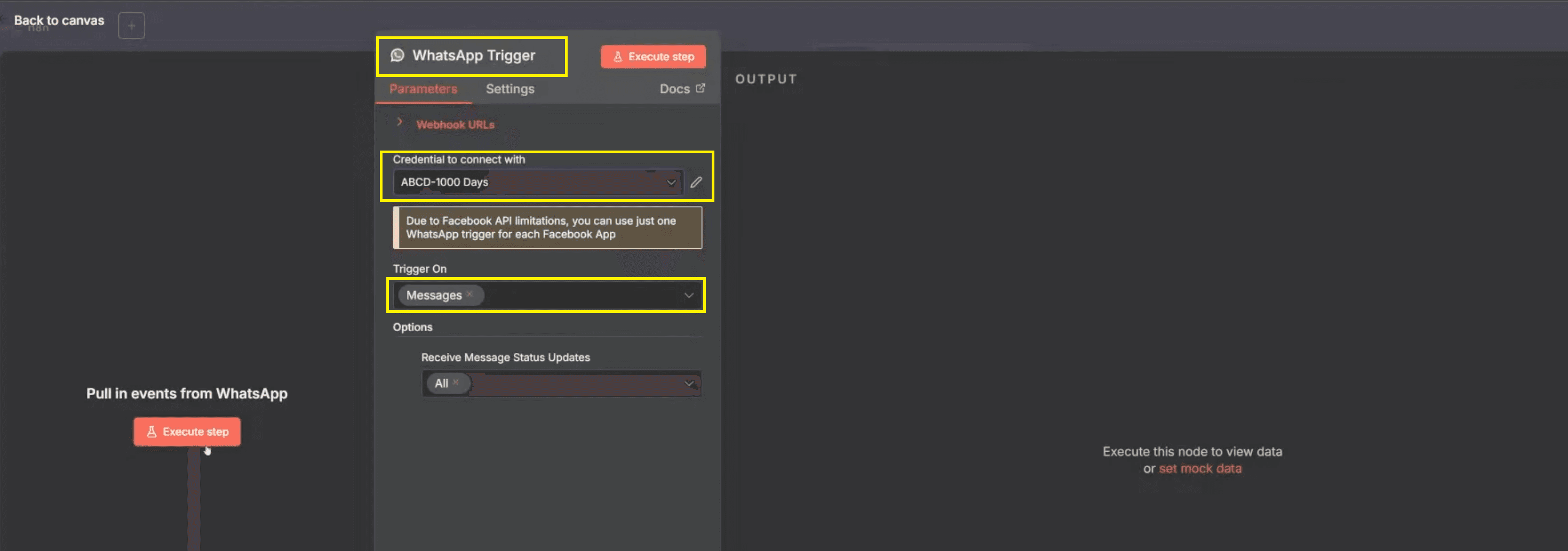
Built-in webhook support provided by the WhatsApp Business Cloud API
This setup allows you to monitor message status in real time, including sent, delivered, failed, or pending messages.
Setting Up Delivery Tracking
Start by creating a new workflow in n8n and give it a clear name such as “WhatsApp Message Status Check.” This workflow will be responsible only for tracking delivery events.
Configure the workflow as follows:
Add the WhatsApp Business Cloud node and select the on message template status update trigger
Choose “All” to capture every delivery status, including sent, delivered, and failed
Run or activate the workflow so n8n begins listening for incoming delivery updates
Once messages start coming in, n8n will display detailed status logs containing the recipient ID, message type (for example, marketing), and the final delivery state. These results can be exported or integrated into reporting tools for performance analysis and campaign monitoring.
Handling Delivery Failures
In some cases, you may see a “message failed to deliver” notification even though the message was successfully sent from n8n. This usually indicates that WhatsApp was unable to complete delivery to the recipient.
Common reasons for delivery failures include:
The recipient phone number does not exist or is no longer active on WhatsApp
The recipient has blocked business-initiated WhatsApp messages
WhatsApp temporarily filters the message to maintain healthy engagement and quality metrics
To reduce delivery failures, always ensure that your messages comply with WhatsApp’s communication policies and that you are sending messages only to verified, opted-in customer numbers. This helps protect your messaging quality and improves overall delivery success rates.
Also Read: WhatsApp Automation (Part 2): Build Chatbots with n8n
Sending Bulk WhatsApp Messages from Google Sheets
Bulk WhatsApp messaging becomes significantly more scalable when Google Sheets is used as the primary contact source. Instead of hardcoding phone numbers inside the workflow, teams can manage contact lists externally while keeping the automation logic unchanged.
This approach is especially useful for marketing campaigns, customer support follow-ups, and lead nurturing workflows where contact data is frequently updated. Support agents and community managers can collaborate easily on the same Google Sheet, while n8n continuously pulls the latest data, ensuring that messages are sent using up-to-date contact information across all automation flows.
Setting Up the Google Sheets Connection
Start by creating a Google Sheet that contains your contact data, using clearly labeled columns such as Name and Phone Number. Well-structured data ensures that n8n can correctly read and map each contact during the workflow execution.
To connect Google Sheets with n8n, follow these steps:
Add a Google Sheets node in your n8n workflow
Select the operation “Get Rows in Sheet”.
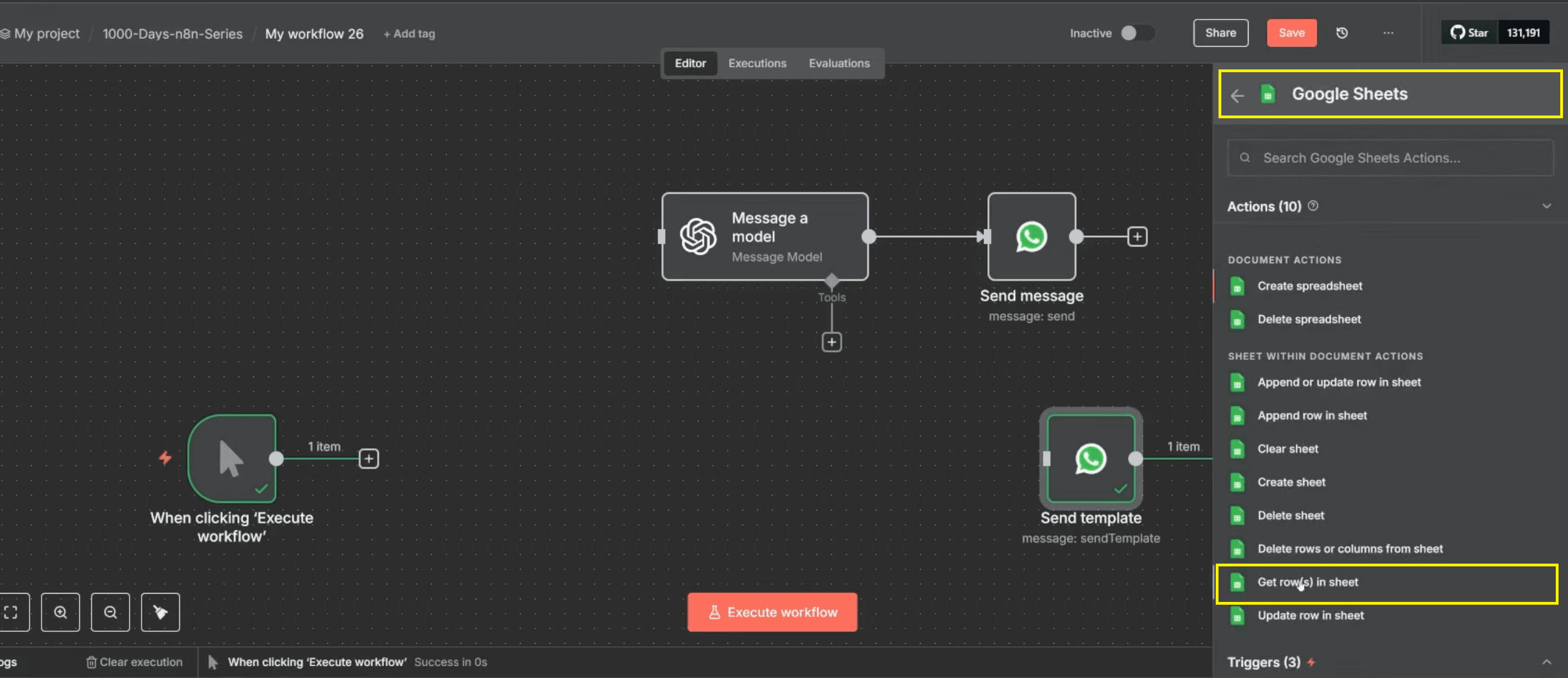
Choose the correct spreadsheet and specify the sheet name (for example, Sheet1)
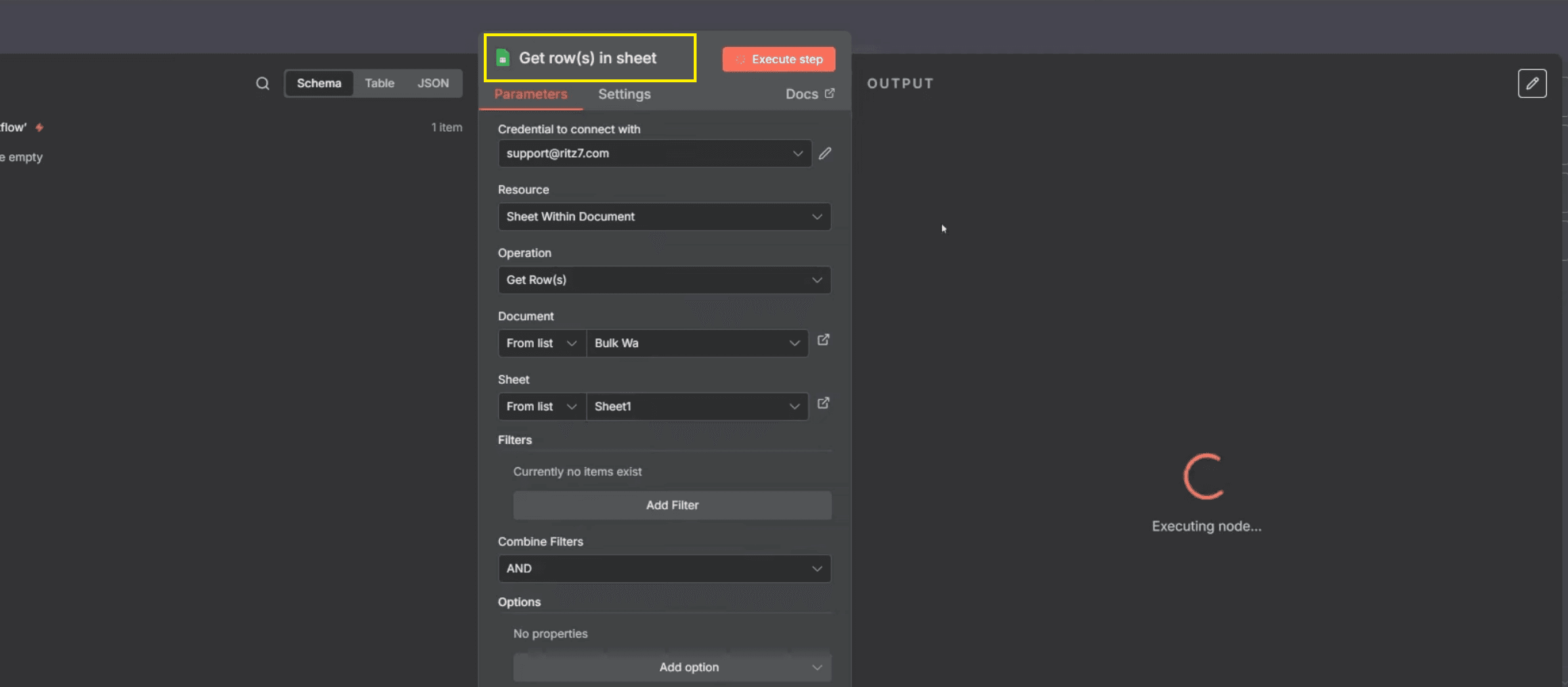
After completing the configuration, click “Execute Step” to fetch all rows from the selected sheet. n8n will display the retrieved contact data, which can then be used for looping, personalization, and bulk WhatsApp message sending.
Looping Through Contacts
When Google Sheets returns multiple rows, n8n treats the data as a list of items. To ensure each WhatsApp message is sent individually and personalized, the workflow must loop through each contact one at a time.
To set this up correctly:
Add the Loop Over Items node immediately after the Google Sheets step
Connect it so that each row is processed as a separate contact
Optionally limit the number of items during testing to avoid sending messages unintentionally
Using a loop ensures that every message is customized with the correct contact details and delivered reliably to each recipient.
Data Formatting: AI Transform Node
Phone numbers retrieved from spreadsheets often appear as numeric values, which the WhatsApp Business API does not accept. If this is not handled correctly, messages may fail even before delivery is attempted. To prevent formatting-related errors, you must ensure your data is "API-ready" before it reaches the Send node.
Using the AI Transform Node:
To simplify this process, n8n provides an AI Transform node. This node allows you to modify data using plain English instructions rather than writing manual scripts.
Add the Node: Click the (+) icon after your Limit or Google Sheets node and select AI Transform from the Data Transformation menu.
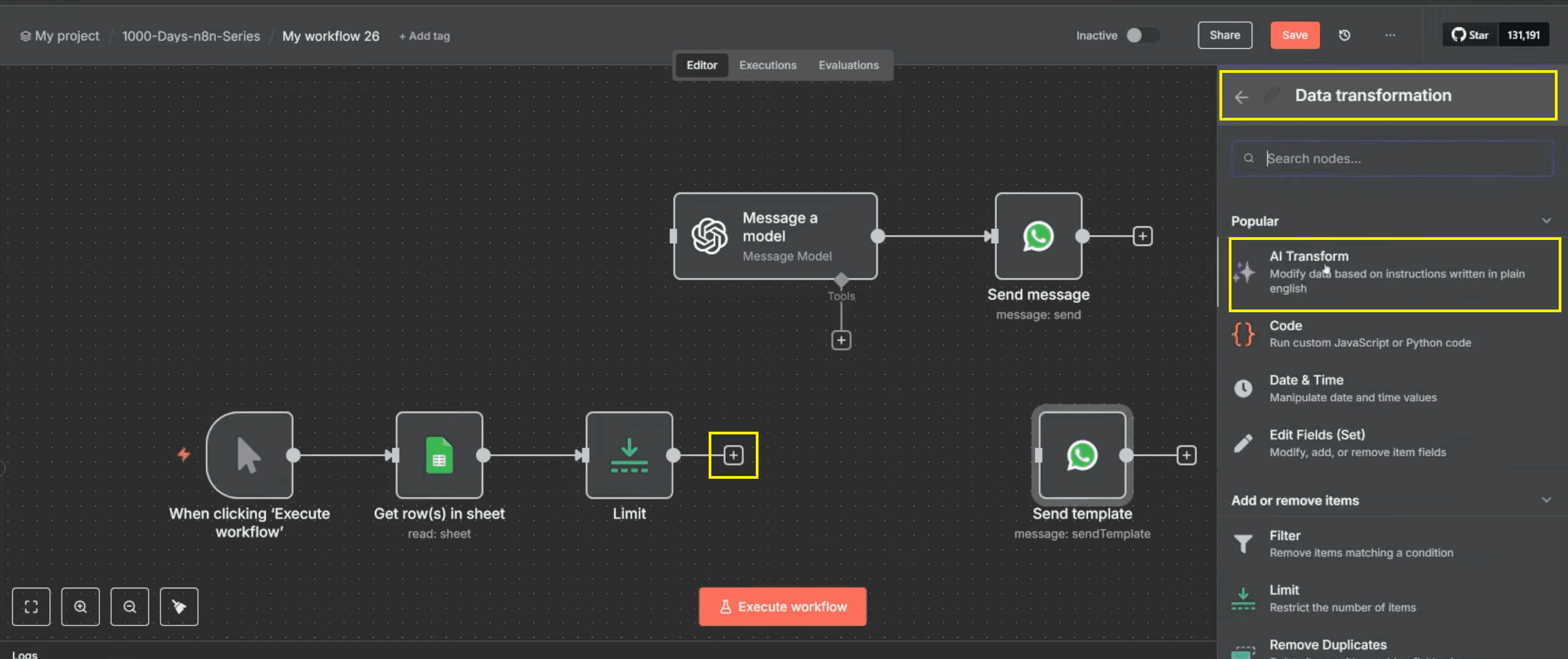
Input Instructions: In the Parameters tab, provide a clear instruction such as: "WhatsApp number should be in text format." This tells the AI how to handle the incoming spreadsheet data.
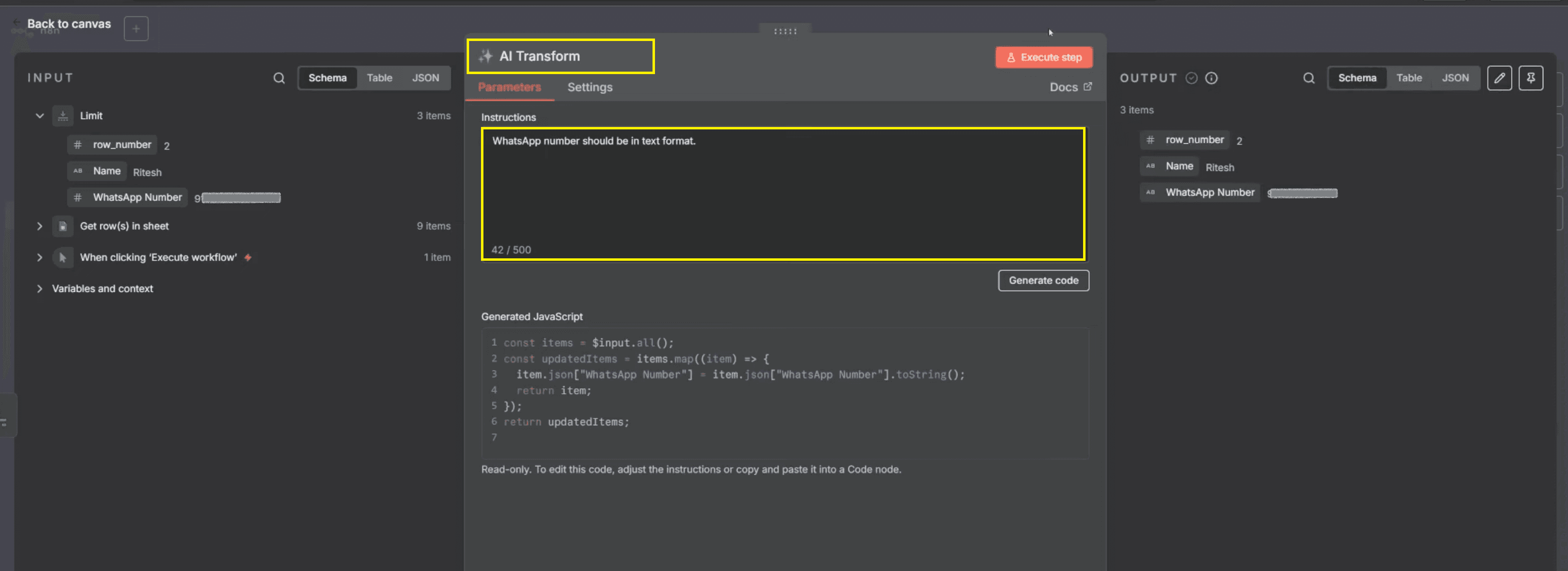
Set and Move On: Once the instruction is written, you do not need to manually generate or edit the code. The AI handles the logic in the background during the workflow run.
Executing the Bulk Send Workflow
After setting up the data transformation step, reconnect your WhatsApp Send Template configuration and map the required dynamic fields from the AI Transform output. This ensures that each message is sent to the correct formatted number and includes personalized details.
Key Mapping Requirements:
Recipient Phone Number: Map the "WhatsApp Number" field (which the AI will process as a string).
Template Variables: Map the "Name" or other variables from your sheet to personalize the content.
Parameters: Ensure any header or body parameters required by your specific WhatsApp template are mapped.
Once the mappings are complete, click “Execute Workflow” to start the bulk send process. n8n will automatically iterate over each row in the Google Sheet, apply the AI formatting, and send the customized template messages.
Verifying Output and Monitoring:
Unlike manual coding nodes, the best way to confirm your formatting is correct is by reviewing the execution results:
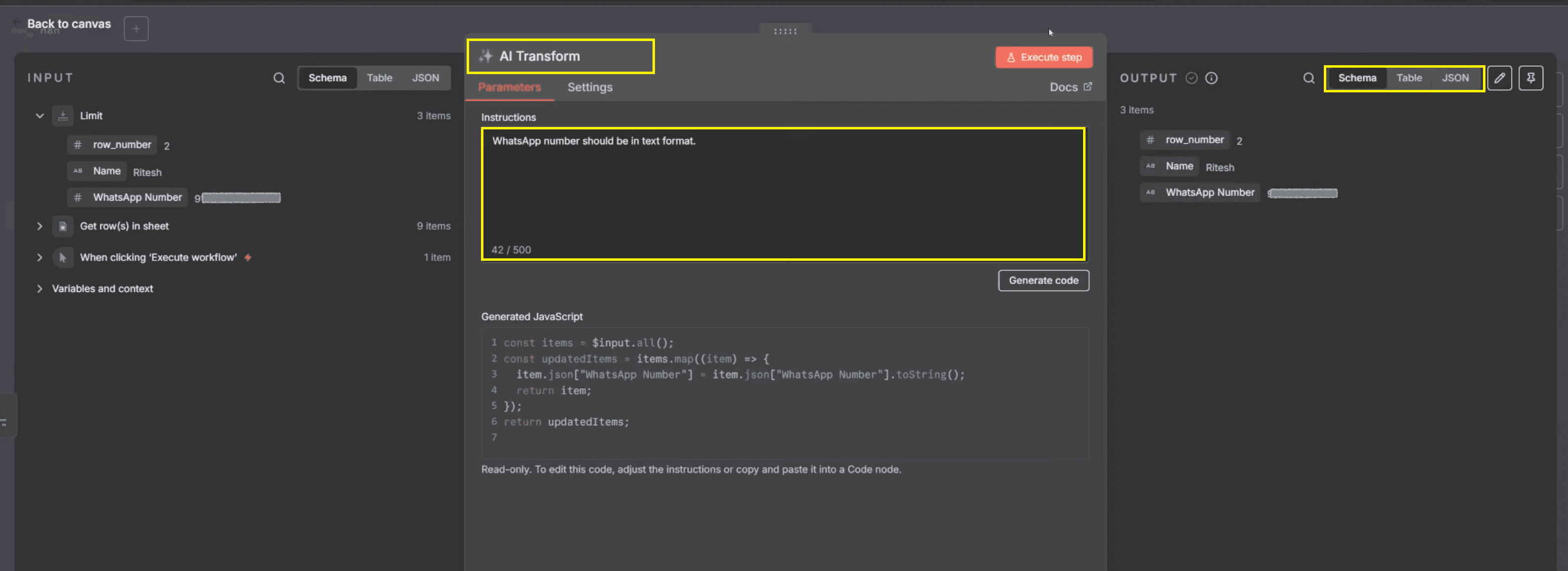
Verify Output: After execution, click on the AI Transform node in the execution canvas. Check the Output panel using the JSON or Schema toggle to ensure the "WhatsApp Number" was correctly converted to text.
Real-Time Tracking: Monitor the execution log to identify sent, delivered, failed, or pending messages.
Update Sheets: Use your delivery tracking workflow to pipe these statuses back into your Google Sheet for reporting and customer engagement tracking.
Read: Automate Email Replies from Form Submission in n8n
Advanced Ideas and Best Practices
To make your WhatsApp automation more effective and production-ready, it’s important to go beyond basic message sending and apply proven best practices. These improvements help increase engagement, maintain compliance, and provide better visibility into campaign performance.
Personalization: Use dynamic placeholders in your WhatsApp template messages to personalize content with names, offers, order details, or event information. Personalized messages consistently perform better and are especially useful for lead nurturing, customer follow-ups, and event communication, as they increase engagement and response rates by making messages more relevant to recipients. The impact of personalization is well documented by industry research from HubSpot and McKinsey. Personalization is supported directly within approved templates using variables defined during template creation.
Error Handling: Implement basic error-handling logic in your n8n workflow to manage failed or pending messages. This may include retrying message delivery, flagging invalid phone numbers, or logging failures for manual review. Proper error handling ensures your automation remains reliable even when message delivery issues occur.
Compliance: Always ensure that recipients have explicitly opted in to receive WhatsApp messages. Compliance is critical to avoid account restrictions and protect message quality ratings. For official guidelines on messaging rules, opt-in requirements, and acceptable use cases, refer to the WhatsApp business policy page.
Analytics Integration: To measure performance, connect your delivery tracking data with analytics and reporting tools. Platforms like Google Data Studio (Looker Studio) or Notion dashboards allow you to visualize message delivery status, engagement trends, and campaign results. This helps teams optimize future messaging strategies based on real data.
Addressing Common Errors
“Recipient phone number not in allowed list”:
This error usually appears when using test WhatsApp numbers, which are restricted to a limited number of users. Always switch to a fully verified WhatsApp Business account and ensure numbers are properly authorized for production use.“Message accepted, not delivered”:
This status indicates that WhatsApp accepted the request but failed to deliver the message. Common reasons include invalid or inactive numbers, recipients blocking business messages, or temporary WhatsApp filtering.Format mismatch:
Phone numbers must be in international format and passed as string values. Numbers retrieved as numeric fields (for example, from Google Sheets) should always be converted to text before sending.
Video Tutorial: How to Automate Bulk WhatsApp Messages
Conclusion: Automating WhatsApp for Business
By combining n8n Workflow Automation, WhatsApp Business Cloud API, and Google Sheets, businesses can build scalable, compliant WhatsApp messaging systems.
This approach helps with customer support, lead nurturing, event coordination, and community engagement. It also keeps full visibility into message delivery and performance. It is a complete automation powerhouse for modern businesses.
You Might Like: 5 Ways to Make Money with n8n AI Automation | Ritz7
Frequently Asked Questions (FAQs)
Can I use n8n to send attachments other than images via WhatsApp?
Yes, the WhatsApp Business API, and by extension n8n, supports sending various media attachments beyond images, including documents (PDFs), audio files, and videos. When configuring your WhatsApp 'Send Template' or 'Send Message' node in n8n, you'll find options to specify the type of media and provide the corresponding public URL.
Is there a limit to how many bulk WhatsApp messages I can send with n8n?
The limits for sending bulk WhatsApp messages are primarily governed by your WhatsApp Business API tier and your messaging quality rating. WhatsApp enforces messaging limits to prevent spam and ensure a high-quality user experience. As your quality rating improves and you send more messages, your tier limits may increase. n8n itself does not impose a limit, but it facilitates sending within WhatsApp's guidelines.
How much does the WhatsApp Business API cost?
The cost of using the WhatsApp Business API is primarily based on a conversation-based pricing model, not on n8n's usage. WhatsApp charges per conversation, which can be either business-initiated (marketing, utility, authentication) or user-initiated (service conversations). The first 1,000 service conversations each month are typically free. Pricing varies by region and conversation category. For detailed pricing, refer to the official WhatsApp Business Platform documentation.