How To Use Emergent AI Playbooks and Save Code to GitHub

Five Secrets To Building Like A Pro with Emergent AI Playbooks:
Make the Computer Do Your Chores: Discover how AI Playbooks can finish the boring parts of your work in seconds so you can spend all your time on the fun stuff.
Put an Unbreakable Lock on the Door: Learn why building your own login is a trap—and how Google Sign-In keeps hackers out of your project for good.
The "Secret Weapon" for Fixing Bugs: Stop guessing when you see a red error! See how Security Telemetry gives you "X-ray vision" to find and fix mistakes instantly.
Make Your Work "Invincible": Find out how to connect your project to GitHub so your code stays safe forever, even if your computer gets smashed!
Team Up with a Super-Robot: Meet Gemini, your new AI partner that catches the tiny mistakes humans miss. (It's like having a pro builder over your shoulder!)
Learning how to use Emergent AI Playbooks effectively is the most efficient way to bridge the gap between AI-generated logic and a live GitHub repository. I see so many people try to build apps the hard way. They spend weeks trying to make a "Login" button work, and then they give up. That is a mistake! We are going to use Google Security Operations and a cool tool called Emergent to build a task manager that is safe and strong. No more making excuses. We are going to build this the right way, right now. Let's go!
Table of Contents:
How Do Emergent AI Playbooks Automate My Work?
Step 1: Waking Up Your Robot Assistant
Step 2: Adding Google Sign-In The Easy Way
Step 3: Fixing Errors Like A Boss
Step 4: Saving Your Work To GitHub Forever
Watch The Video Tutorial
Easy Answers To Big Questions
How Do Emergent AI Playbooks Automate My Work?
To use playbooks correctly, you must understand that they are pre-set workflows that guide the AI through complex technical tasks. In professional security operations, experts use Security Orchestration, Automation, and Response (SOAR) to make sure every job is done exactly the same way every time. By choosing an Emergent Playbook, you are telling the AI to follow a Google Unified Security plan to set up your app's code. According to the source at Wikipedia, this automation is the only way to build software that is safe, fast, and free of human mistakes.
Dig Deeper: What Is Emergent AI and How Do I Use It?
Step 1: Waking Up Your Robot Assistant
Before you can build, you have to make sure your tools are turned on. This is what on-call engineers do every morning.
Wake Up the Agent: First, go to your dashboard and click 'Wake Up'. Doing this turns on the MCP server, which acts like the brain of your project. If the brain is asleep, nothing happens. Furthermore, you should check the screen for green lights in your security telemetry. Such monitoring stops you from having a configuration error later.
Tell the agent your plan: say something like, "I am back! Let's work on my task manager." This helps the AI remember what you were doing.
The Why: Turning on the MCP server first makes sure the Data pipeline management is ready to move your code around.
Dig Deeper: How to Create a Task Manager Using Emergent AI?
Step 2: Adding Google Sign-In The Easy Way
Don't try to make your own login system. It is too hard, and you might leave the door open for malware activity. Follow this strict roadmap to stay safe:
Activate the Agent: Start by waking up your environment. This initialises the MCP server, which acts as the backbone for your microservices platform.
Choose Your Method: You will be given two choices:
Option A: Emergent Managed Auth (Fastest).
Option B: Custom JWT.
Mentor Advice: Choose Option A. It handles the connector setup and universal data models for you.
Prompt the Agent: Use a clear command: "Can you please implement the task management behind a login screen? Also allow people to login/register using Google Sign-in."
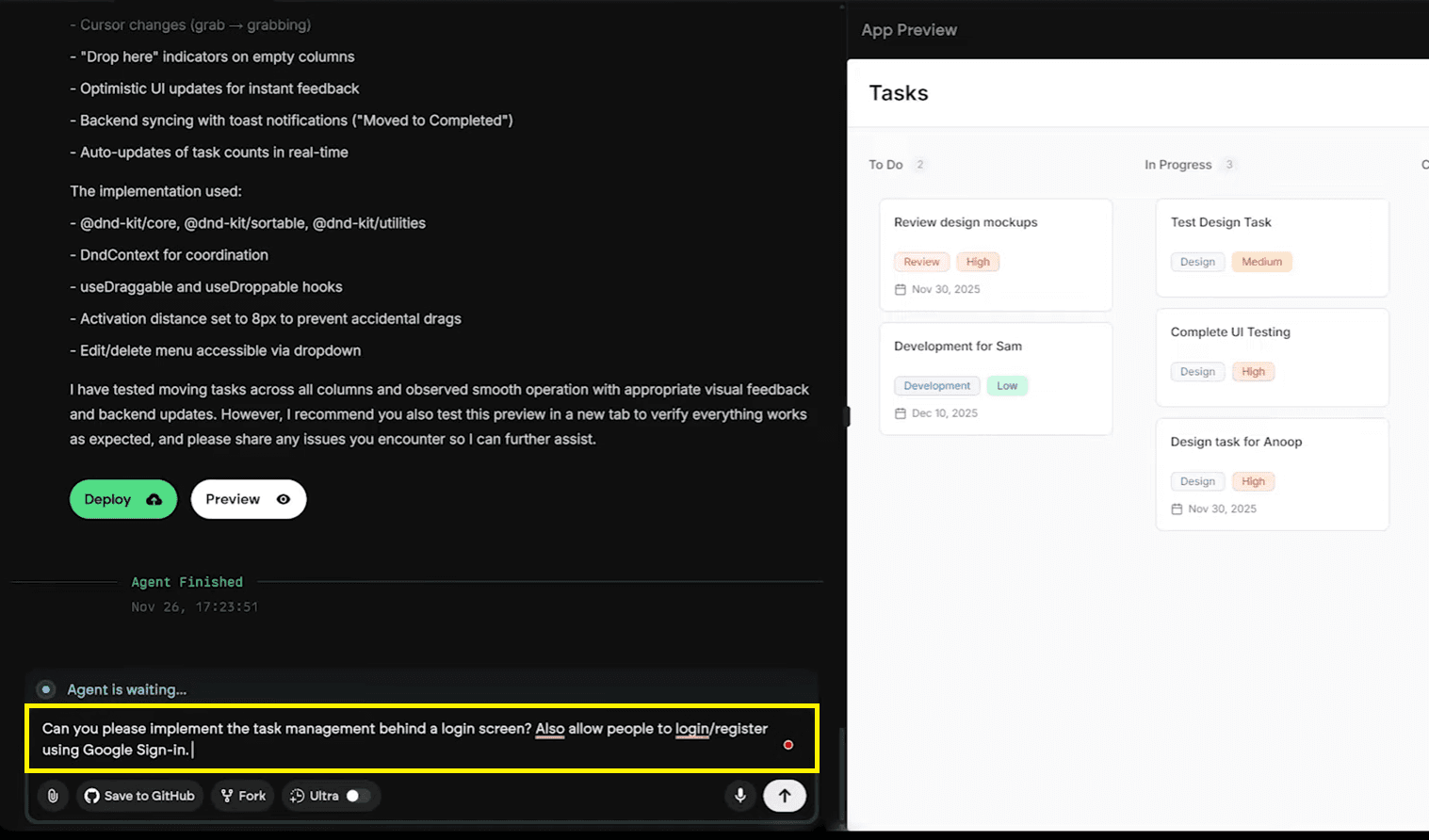
Monitor the Build: Watch the SecOps Dashboard. The agent will create
server.pyit. It’s essentially setting up a data pipeline management system for your user identities.
What To Do | ❌ The Wrong Way | ✅ The Smart Way |
Log in | Making your own password box | Google Security Operations Sign-In |
Safety | Letting everyone see everything | Identity and Access Management |
Storage | Saving on your desktop | BigQuery UDM storage |
The Why: Using Google's system stops Identity Novel Exposures and keeps your secrets safe from Data Leakage.
Dig Deeper: What is MCP in an agent workflow?
Step 3: Fixing Errors Like A Boss
To fix errors like a boss, you must realise that everyone makes mistakes, including professional SRE teams (Site Reliability Engineering). When you see a red error message, the secret is to stay calm instead of getting angry. High-level engineers expect bugs to happen; they just focus on fixing them using the security telemetry data provided by the system.
Critical Warning: > Do not delete your whole project if you see an error! This is what beginners do, and it wastes so much time.
How to find the problem: Initially, to find the problem, look at the specific text on the screen. For example, if you see a "useNavigate error", do not panic because this is usually just a small configuration error in how your pages are linked.
How to use the helper: Alternatively, to use the helper, open the Expression Builder tool within the platform. You simply highlight the red error text and tell the AI, "Fix this error for me," and the robot will rewrite the code to solve the issue.
How to handle a 401 error: Finally, to handle a 401 error, you must recognise that your app is saying "401 Unauthorised", which means the security is blocking your request. You should tell the AI, "The security telemetry shows a 401 error; please fix the CORS headers," so it can repair the connection between your frontend and backend.
The Why: Fixing small bugs instead of starting over keeps your error budget happy and helps you finish your project.
Dig Deeper: What should I do if the emergent AI encounters a bug?
How To Save Your Work To GitHub Forever
To save your work to GitHub on the Emergent platform, you must meet specific account requirements and follow a structured integration process.
Requirements for Saving to GitHub:
Before you can export your code, your account and project must meet these conditions:
Active GitHub Connection: You must authorise Emergent to access your GitHub account.
Authorisation: Click your profile icon in the top right corner of the dashboard and select "Connect to GitHub".
Permissions: Granting access can be done for all repositories or only specific ones. A green indicator on the GitHub icon confirms a successful link.
Paid Subscription Plan: While starting for free is an option, saving your code typically requires a paid plan within the credit-based system. Native GitHub integration and the ability to save changes directly to GitHub are features available on paid plans (such as Standard or Pro). While you can start building for free, saving your code typically requires a plan within their credit-based system.
Active Agent State: If your project has been inactive, you must click "Wake Up Agent" or "Wake Up Server" to restart the environment before you can take further actions.
Repository Access: Furthermore, having the appropriate permissions for your chosen destination is essential, whether you are adding a new GitHub organisation or selecting specific repos.
Step-by-Step Implementation Roadmap:
Based on the platform's workflow, follow these steps to save your project:

Locate the option: Once you have a stable version of your app, click the "Save to GitHub" button.
Define the Destination: Select an existing repository from your account or create a new repository directly through the Emergent interface.
Configure the Sync: You can create and select branches for your code within the Save menu.
Confirm and Verify: Click "Create and push to GitHub". You can then click "Go" to visit your GitHub account and verify that all generated code is available in the repository.
The Why: Saving to GitHub ensures you have a backup of your code away from the platform. It allows you to revert to previous stable versions if the AI agent encounters an issue it cannot fix later.
Summary
Goal | Pro Action | The "Why" |
Setup | Wake up the MCP Server | Activates the "brain" and data pipeline for your project. |
Authentication | Choose Managed Auth | Prevents identity novel exposures and data leakage. |
Maintenance | Use Expression Builder | Fixes 401 and CORS errors without wasting your "error budget". |
Deployment | Connect to GitHub | Provides a permanent backup and version control for your app. |
Watch The Full Video Tutorial on Emergent AI Playbooks
In this video, you can watch us build an app from start to finish. We show you how to handle incident response when something goes wrong. You will see us wake up the robot agent and use Google Security Operations (which people used to call Google SecOps) to add a login screen. We also show you how to fix a "routing error" using Gemini in security operations. This video is great for anyone who wants to learn about site reliability engineering and how to use a SOAR data integration to save their work to GitHub. It’s like watching a master builder build a house, but for computer apps!
FAQ
How to integrate login with Google?
You can add Google login by utilising Emergent AI Playbooks directly inside the platform. Specifically, you should not try to write the code yourself! Instead, use the 'Managed Auth' playbook to set up your identity and access management automatically. According to the source at NIST, using Google to log in is the best way to stop identity novel exposures and keep your app safe.
What is Google integration?
Google integration means connecting your app to the Google Cloud Platform. This lets you use cool things like BigQuery UDM storage for your data and Vertex AI for smart robot brains. As per Wikipedia, this helps SRE teams make apps that work for millions of people. It also helps you use the MITRE ATT&CK framework to watch out for malware activity.
What are security operations?
Security Operations (or SecOps) is the team that keeps computers safe. They use threat detection to find bad guys and incident response to fix things when they break. By using Google Chronicle SOAR, they can do this very fast. When you use these tools, you are helping your on-call engineers stay calm and not get too much pager load.
How do I use the MITRE ATT&CK framework?
The MITRE ATT&CK framework is like a big book of all the tricks hackers use. You use it to plan your threat detection. For example, if you want to stop data leakage, you look in the book to see how hackers steal data. According to the source at MITRE, this helps security operations centres stay one step ahead of the bad guys.