Stop Deploying Broken Agents: The Production Guide | Ritz7
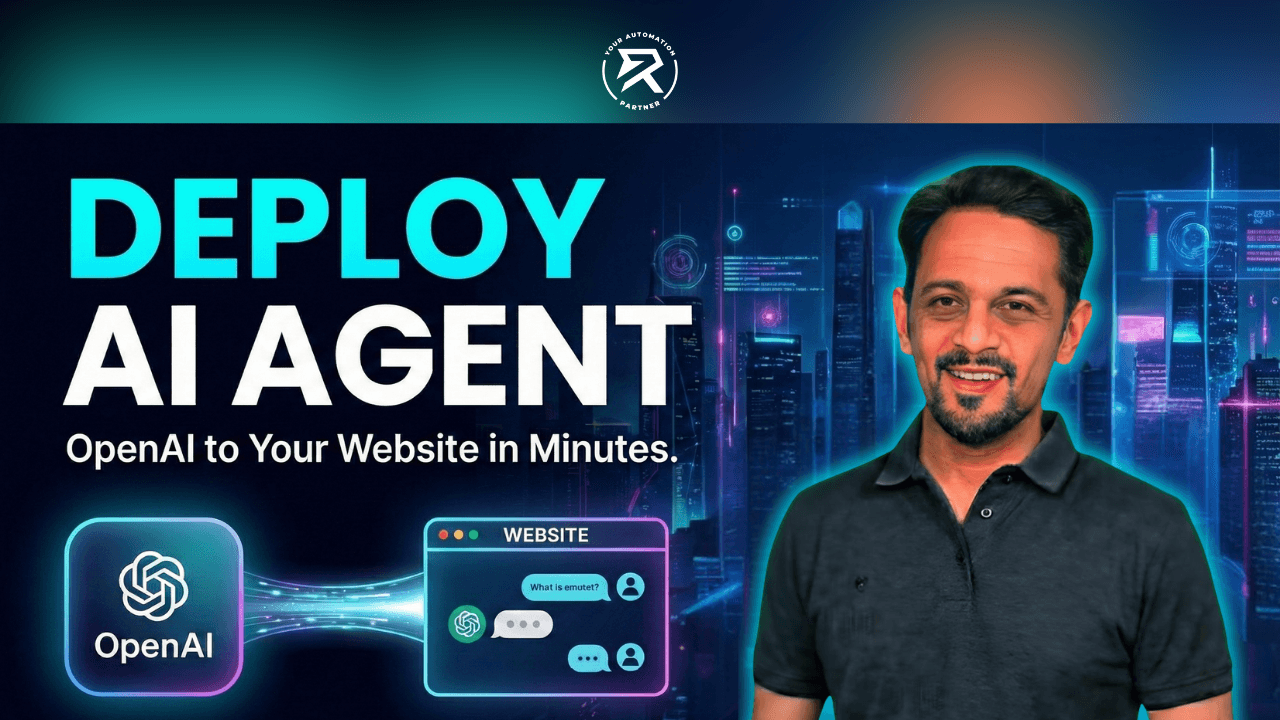
Your AI agent is worthless right now. Tweaking prompts in the sandbox? Cute, but useless. Real products need live URLs. Stop playing and ship it today.
The "It Works on My Machine" Syndrome
I am going to be blunt because someone has to be: I am tired of seeing "Generative AI" demos that look impressive on Twitter but fall apart the moment they leave localhost. You have likely spent weeks inside the OpenAI Agent Builder, painstakingly tweaking prompts, uploading knowledge files, and refining your Agentic systems to handle complex, multi-step logic. You might have even built a brilliant Multi-Agent Personal Assistant that can seemingly do it all. And then what happens? You deploy it to the web with hardcoded API keys, broken CORS policies, and a UI that looks like a high school science project. The moment a second user logs in, the latency spikes, the context breaks, and the magic is gone.
We are not building toys here. We are building scalable Web applications.
If you want to call yourself a developer in the era of Artificial Intelligence, you need to understand deployment architecture. It is not enough to simply have a smart agent; you need a delivery pipeline that is secure, scalable, and resilient enough to handle real-world traffic. A professional deployment doesn't just "work"—it handles errors gracefully, secures user data, and loads instantly regardless of where the user is located.
This guide is your manifesto. We are going to take your raw workflow from the OpenAI Agent Builder, wrap it in a robust ChatKit frontend, and deploy it to Vercel using industry-standard Cloud Deployment practices. We will even cover how to force No-code platforms like Emojent to build the integration for you properly.
Let’s clean up your workflow.
Video Tutorial
1. The Source of Truth: OpenAI Agent Builder
Stop writing business logic in your frontend code. I see this constantly—developers trying to chain fetch() requests to handle conversation history manually, or writing complex state management logic in React just to remember what the user said three messages ago. Stop doing this. The frontend is for presentation; the intelligence belongs in the backend.
The OpenAI Agent Builder exists for a specific reason. It handles the Agent state, the Context Management, and the Agent methodology. Your job is to define the "brain" there, essentially creating a server-side container for your logic. Your JavaScript should only be responsible for sending the prompt and rendering the answer, not for thinking.
The Workflow ID is Your Database Key
When you are finished building, you must click 'Publish'. Leaving your agent in "Draft" mode is the equivalent of writing code and forgetting to commit it to the repository. The API cannot interact with a draft; it can only interact with a published version. If you try to connect to a draft, your application will simply fail silently or return authorization errors.
Finalize Logic: Ensure your Generative AI Agents handle edge cases and don't hallucinate wildly when given unexpected input.
Publish: Hit the button. This creates a frozen snapshot of your configuration.
The Artifact: You will get a Workflow ID. This string is the single most important piece of data in your entire stack.
Pro Tip: If you missed it, click "Quick Start" inside the builder to find it again.
The Why: The Workflow ID is the immutable pointer to your agent’s logic. It creates a contract between your frontend and your backend. It allows you to update the agent's behavior, personality, or knowledge base in the Builder without ever needing to redeploy your frontend code. This decoupling is AI Orchestration 101.
2. The Framework: Forking ChatKit
Could you build a chat interface from scratch? Sure, if you have a few weeks to waste. You would need to handle WebSocket connections, Markdown parsing, code-block syntax highlighting, and graceful error handling for network interruptions. Should you do this? Absolutely not❌.
We use ChatKit because it is purpose-built for this exact scenario. It handles the Model Context Protocol—the standardized way of passing conversation history and metadata back and forth—so you don't have to reinvent the wheel. It ensures that when your agent streams a response, it appears character-by-character smoothly, rather than dumping a wall of text on the user after a ten-second delay.
Fork, Don't Clone (Yet)
Navigate to the GitHub repository via the "Quick Start" link in OpenAI. Fork the repository to your own account immediately. Do not just clone the OpenAI repo directly. By forking it, you create a copy that you own, allowing you to maintain your own version history and merge upstream updates if OpenAI releases patches later.
Now, here is a trick from the transcript that saves time: You don't even need to clone this to your local machine to fix the initial configuration. We can do it right inside the GitHub browser interface, saving you the hassle of setting up a local environment just for a one-line config change.
3. The Backend: Node.js vs. The Edge (The Runtime War)
Here is where 90% of deployments fail, and users end up confused as to why their bot works sometimes but crashes at other times. Pay attention.
Next.js templates often default to the "Edge" runtime because it is marketed as faster and cheaper. While Edge functions are excellent for simple tasks, they are stripped-down environments that lack full Node.js compatibility. The OpenAI REST API and the associated AgentKit SDK often rely on specific cryptographic libraries and long-running processes that simply do not exist or function reliably in the Edge runtime. If you stick with Edge, you will face random timeouts and obscure error messages. We need stable, robust Server-side processes.
The Fix (Do this in the GitHub Web Editor):
Navigate to
app/api/create-session/route.js(or.ts).Click the "Edit" (Pencil) icon.
Look for the runtime config line.
❌ WRONG: The default in many templates
export const runtime = 'edge';
✅ CORRECT: Force the robust runtime
export const runtime = 'nodejs';Commit Changes: Add a message like "Switch to Node.js for stability."
The Why: Switching from Edge to Node.js Runtime ensures your API endpoints don't crash when the agent takes 5 seconds to "think" or process a large file. We optimize for reliability and compatibility with industry protocols, not just raw millisecond startup time. A slightly slower start is infinitely better than a crashed process.
4. Environment Variables: Security Is Not Optional
If I see an API key committed to a public GitHub repository, you are off the project immediately. I cannot stress this enough: automated bots scan GitHub continuously, looking for keys to steal.
You are dealing with real API costs here. An exposed key allows anyone to drain your credit balance in minutes. Before you even deploy, you need to verify you have credits loaded in your OpenAI API Keys dashboard. An empty balance results in a 429 error, which makes your bot look broken.
Note for Enterprise Users: If you are required to use a compliant infrastructure, you might be connecting to an Azure OpenAI Service endpoint. The security principle is identical: inject secrets at build time, never in code.
Create a specific API Key for this project. Do not use your "Default" key. Call it "ChatKit-Deploy" so that if it ever gets compromised, you can revoke just that one key without breaking your other projects.
5. Deployment: Vercel is the Standard
Do not overcomplicate this. We are using Vercel as our App Service because it abstracts away the nightmare of server management. You do not need Docker; you do not need AWS EC2 instances.
Connect GitHub: Log in to Vercel and click "Add New Project." Select your forked ChatKit repo from the list.
Inject Variables: Vercel will ask for Environment Variables during the build setup. This is where you securely inject your secrets.
OPENAI_API_KEY: Your secret key.NEXT_PUBLIC_CHATKIT_WORKFLOW_ID: The ID from Step 1.
Deploy: Click the button.
In roughly 60 seconds, Vercel will build your application, assign SSL certificates, and give you a live Domain URL (e.g., https://my-agent.vercel.app).
The Why: Vercel’s global CDN ensures low latency Real-time streaming responses. Whether the user is on a mobile device or a desktop, the static assets are served from the server closest to them, while the API routes are handled serverlessly. This is how you achieve a professional-grade user experience.
6. The Gatekeeper: Domain Whitelisting
You deployed it. You clicked the link. It doesn't work. You see a spinner that spins forever, or a red error in the console.
This is because you ignored the Domain configuration. The OpenAI API is secure by default; it blocks requests from unknown origins (CORS) to prevent unauthorized websites from using your agent and racking up your bill. You must explicitly tell OpenAI that your new Vercel domain is a trusted entity.
Navigate: Go to OpenAI Platform > Security.
Add Domain: Enter your Vercel URL (
https://your-project.vercel.app).Generate Key: Save it.
The Why: Domain configuration is your first line of defense. It prevents malicious actors from stealing your Workflow ID and embedding your agent on their website. It ensures Session isolation and keeps your API usage strictly tied to your own application.
7. The "Lazy" Pro Method: Emojent & No-Code
Sometimes, you don't want to maintain a Vercel repo. Maybe you just need a Chat Widget on a client's existing WordPress or Wix site. Tools like Emojent (an AI-powered web builder) can automate this, but you have to prompt them correctly. AI models are only as smart as the context you give them.
The "Super-Prompt" Strategy🔥: Don't just say "Make a bot." If you do that, the AI will guess, and it will likely use outdated libraries. Give the AI the manual.
Open Emojent.
The Prompt:
"I want to create a chat widget in the bottom right. I want to use OpenAI ChatKit. Here is the documentation link:
platform.openai.com/docs/guides/chatkit. Here is my OpenAI API Key [KEY] and Workflow ID [ID]."The Magic: Emojent reads the documentation you provided, understands the AgentKit SDK requirements, and generates the correct
index.htmlandapp.jscode for you.Verify: Emojent will spin up a backend preview. Check the client-side embedding to ensure it renders correctly.
Crucial Step: You must also whitelist the Emojent domain (e.g.,
app.emojent.com) in your OpenAI Security settings, just like you did for Vercel.
8. UX/UI: Don't Ship "Default" (Use ChatKit Studio)
Nothing says "amateur" like the default gray robot avatar and the generic "How can I help you?" greeting. You are building a Profound UI, and trust is established through design. If your bot looks generic, users will assume its intelligence is generic.
Do not guess the CSS values. Use ChatKit Studio, a visual editor provided by OpenAI to generate the configuration JSON.
Open ChatKit Studio: This is the playground for the UI.
Customize:
Theme: Toggle Light/Dark modes to see how it adapts.
Color: Match your brand's specific hex code so it feels native to the website.
Prompts: Change the default greeting to a context-aware Starter Message like "Give a keyword to generate a newsletter."
Export: Copy the generated JSON or code configuration.
Update: Go back to Emojent (or your Vercel code) and paste the new configuration.
The Why: This creates a Natural speech interface feel. It transforms a generic tool into a branded Agent Extension that feels like a premium part of your product, rather than a tacked-on widget.
Conclusion: Ship It
You now have a complete, professional pipeline.
OpenAI Agent Builder acts as the brain, managing logic and state.
ChatKit acts as the body, handling the interface and communication protocols (hosted on Vercel or generated by Emojent).
Security is enforced via Domain Whitelisting and environment variables.
You have avoided the headaches of managing a database ORM by letting OpenAI handle Conversation persistence. You have secured your endpoints against unauthorized access. You have built a true, production-ready Agentic system.
Now, stop reading, go to your terminal (or Emojent), and ship the code.
Frequently Asked Questions
How to integrate an AI agent into a website?
The most efficient way to integrate an AI agent is to use a pre-built frontend framework like OpenAI’s ChatKit. Instead of writing complex WebSocket code from scratch, you fork the ChatKit repository, connect it to your agent using your Workflow ID, and embed the resulting application onto your site using an iframe or a direct link. For non-coders, tools like Emojent can automatically generate the HTML embedding snippet for you.
How do I integrate OpenAI into my website?
To integrate OpenAI securely, never expose your API key in frontend code. Instead, use a backend middleware (like Next.js running on Node.js) to handle requests.
Publish your agent in the OpenAI Builder to get a Workflow ID.
Store your
OPENAI_API_KEYin secure environment variables.Whitelist your website’s domain in the OpenAI Security dashboard to allow the connection.
Where can I deploy AI agents?
You can deploy AI agents on any cloud platform that supports Node.js, but Vercel is the industry standard for 'Next.js' based AI applications due to its global edge network and ease of use. Other viable options include Netlify, AWS Amplify, or containerized deployments on DigitalOcean or Azure App Service.
How to deploy a chatbot on a website?
Follow the "Builder-Kit-Cloud" pipeline:
Builder: Create and publish your logic in the OpenAI Agent Builder.
Kit: Clone a frontend template (like ChatKit) to handle the user interface.
Cloud: Push the code to a hosting platform like Vercel. Once deployed, simply copy the generated URL (e.g.,
https://my-bot.vercel.app) and link to it, or embed it inside your existing website using an<iframe>tag.