How To Automate Gmail Emails Using Google Workspace Studio
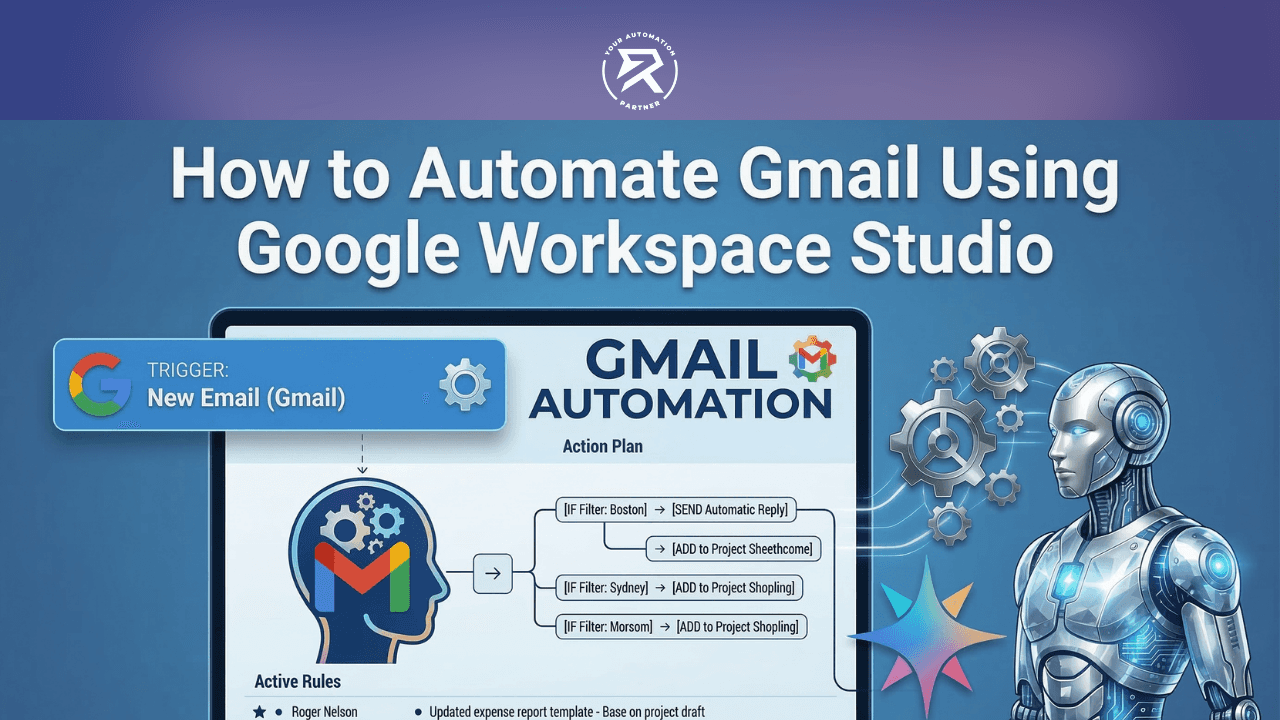
Master how to automate Gmail emails using Google Workspace Studio and Gemini AI. Learn AI labelling, saving attachments to Drive, and data extraction to Sheets.
5 Secret Keys to Automate Gmail Emails:
Discover how Gemini AI acts as a super-robot to read and sort your emails while you sleep.
Learn why using X-Ray Vision via Gemini AI to find attachments saves you hours of frustration.
See how your new Secret Weapon turns messy emails into neat rows of data instantly.
Discover how to become invincible against inbox clutter by using a digital co-pilot.
Learn why setting up this magic shield stops you from ever missing a vital message again.
Stop letting your inbox bully you. Every minute you spend manually dragging an email into a folder is a minute you aren't making money or growing your business. Most people treat their email like a junk drawer, hoping they’ll find what they need later. That is a losing strategy. I’m going to show you how to build a high-speed, AI-powered engine that handles the grunt work for you. We aren't just "organising" mail; we are building professional-grade business workflows that think, act, and deliver results. If you want to stay ahead, you need to automate Gmail emails so your inbox becomes an employee that never sleeps—powered by Gemini AI.
Table of Contents
Why Manual Email Sorting Is Costing You Success
What Is Google Workspace Studio?
How To Integrate Gemini AI With Gmail?
The Step-by-Step Guide to Automating Gmail
Step 1: Setting Up Your Smart Filters (Starter)
Step 2: Using Gemini AI for Secret Weapon Labelling (AI Labels)
Step 3: Saving Attachments with X-Ray Vision
Step 4: Extracting Data to Google Sheets
Video Tutorial: Watch the Magic Happen
How Can Gemini For Google Workspace Assist You In Gmail?
How To Level Up Your Gmail Automation and Gemini AI
Common Pitfalls to Avoid
Frequently Asked Questions
Why Manual Email Sorting Is Costing You Success
You are currently acting as a highly-paid secretary for your own inbox. Every time you open an email, read it, and decide where it goes, you are draining your mental energy. The goal here is to stay safe from distractions and stop getting frustrated by the endless red bubbles on your screen. By the time you finish this, you will have an AI assistant that classifies messages and moves files before you even wake up. When you automate Gmail emails using Gemini AI, it isn't just a luxury; it's a necessity for survival in a fast-paced world.
What Is Google Workspace Studio?
If you think Google Workspace Studio is just another menu button, wake up. It is the powerhouse of the Google Workspace ecosystem. Officially launched for general availability in late 2025, it is a no-code agentic platform where you build, manage, and share AI agents. Think of it as the "Brain" that connects Gmail, Drive, and Sheets.
Unlike old-school Apps Script, which required you to be a coding genius, Studio lets you build business workflows in minutes using natural language. You describe what you want, and Gemini AI builds the logic. It is the place where you create "flows"—automated sequences that move far beyond simple, rule-based filters.
No-Code Mastery: You don’t need a developer. If you can write a sentence, you can automate complex work.
Native Integration: It lives directly inside your favourite apps like Gmail and Drive, meaning your AI assistant has contextual awareness of everything you do.
Agentic AI: Using Gemini 3, these agents don't just follow a list; they "reason." They can perform sentiment analysis, decide which emails are urgent, and even handle invoice extraction.
Team Scalable: You can share your automated flows just like a Google Doc, allowing your entire Google Workspace domain to become Invincible against busy work.
.
✅ Best Practice: Use the Studio look to manage your agents from one central hub (studio.workspace.google.com).
❌ Bad Habit: Relying on basic Gmail filters for complex tasks. Filters are for sorting; Studio is for AI Enablement and execution.
The Why: We use Google Workspace Studio because it is the only tool that gives you the speed of generative AI with the reliability of a structured workflow. It turns you into a "Product Architect" instead of a data entry clerk
Also Read: How To Create a Google Gemini Gem
How Can I Automate Gmail Emails Using Google Workspace Studio?
Think of Google Workspace Studio as your new command centre. It is a visual playground that lets you connect Google Workspace Flows across apps.
You can link Gmail, Drive, and Google Sheets.
You do not need to be a computer scientist. This is the "Secret Weapon" that turns static apps into a living, breathing system.
Use plain language prompts to tell Gemini AI exactly what to do.
This avoids complex Apps Script that breaks as soon as you touch it. It uses Google's cutting-edge Gemini models to understand the context of your messages, not just the keywords. This is the best tool to automate Gmail emails. It bridges the gap between your messy inbox and the work that grows your business.
Connect Your Apps: Build a bridge between Gmail and Google Sheets so data flows automatically.
Use Reasoning, Not Rules: Traditional filters are "if-this-then-that." Gemini AI uses reasoning to understand why an email matters.
Scale Your Success: Once you build a flow, it runs 24/7 and handles repeatable tasks while you sleep.
The Why: We use Studio because manual work is a slow death for your productivity. It allows you to build business workflows that are Invincible against human error and forgetfulness.
How To Integrate Gemini AI With Gmail?
Most people think Gemini AI is just a chatbot you talk to when you're bored. They are wrong. Integrating Gemini AI into your inbox is about building a professional-grade command centre. In 2026, this integration is native—no clunky plugins required.
Look for the Star: Open Gmail on your desktop and find the Gemini AI side panel icon (the spark star).
Enable Smart Features: Ensure your Google Workspace domain has "Smart features and personalisation" enabled in settings.
Connect the Apps: Use Google Workspace Studio to bridge your Gmail to other AI-powered tools.
Use Natural Language: Start typing in the side panel to ask questions about your inbox content.
The Why: We integrate this way to make the AI assistant an active part of your business workflows.
Also Read: How To Create Automated Apps Using Emergent AI Tools
The Step-by-Step Guide to Automating Gmail
Setting Up Your Smart Filters (Starter)
Before Gemini AI can do its job, you have to give it a clear path. People call this first block the Starter.
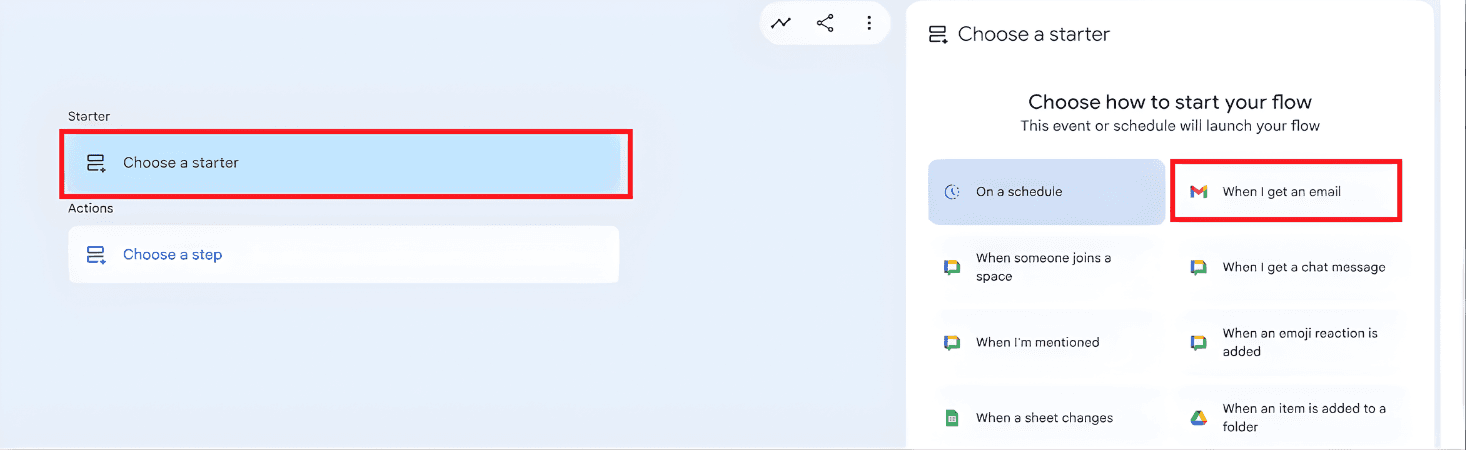
How to navigate: Go to your flow editor and select the first block: "Step 1: When I get an email".
What to do: Click the block to edit. Set conditions so the flow doesn't run on every spam message.
Filters to use: Under conditions, filter by "Subject" or "Body". For instance, to track “password reset not working” issues, create a filter for that exact phrase. This will automate Gmail emails related to support.
The Why: We do this to prevent the system from getting overwhelmed and to ensure only relevant Customer data reaches your Sheets.
Using Gemini AI for Secret Weapon Labelling (AI-Powered Labels)
Now we bring in the brains. In the workflow, click "Add step" and select "Add labels". This is a deep dive into the meaning of the message using Gemini AI.
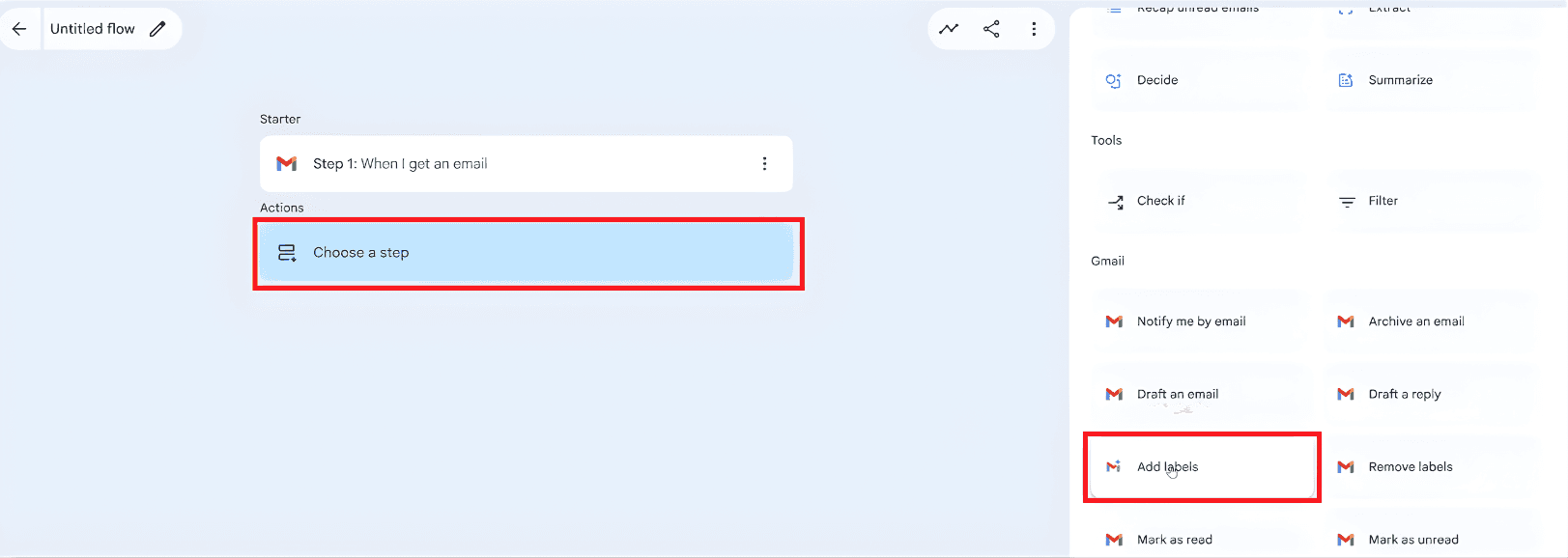
How to navigate: In the "Add labels" side panel, select the Email ID from Step 1. Enable the "AI-powered labels" toggle.
What to do: Name your label (e.g., "Marketing-Test" or "Collab-test").
What prompt to use: In the "Description for Gemini" box, use natural language to explain the logic.
Example prompt: "If the body of the email is referring to any collaboration opportunity with us for video creation or training programs, then mark it as collab-test."
✅ Best Practice: Always toggle on the AI finding requirement so you apply labels only when Gemini AI finds a true match.
How To Save Gmail Attachments To Google Drive Automatically
Searching through old emails for a single PDF is a complete waste of time. We use Gemini AI as our digital hunter to pull those files out and put them exactly where they belong.
Step 1 — The Critical Filter: Here is where most people break the workflow: You must set your Starter (Step 1) to "Specific Emails" and tick the box for "Has attachments: Yes". If you leave it on "All emails," the system may try to run on messages that have nothing to save, leading to errors.
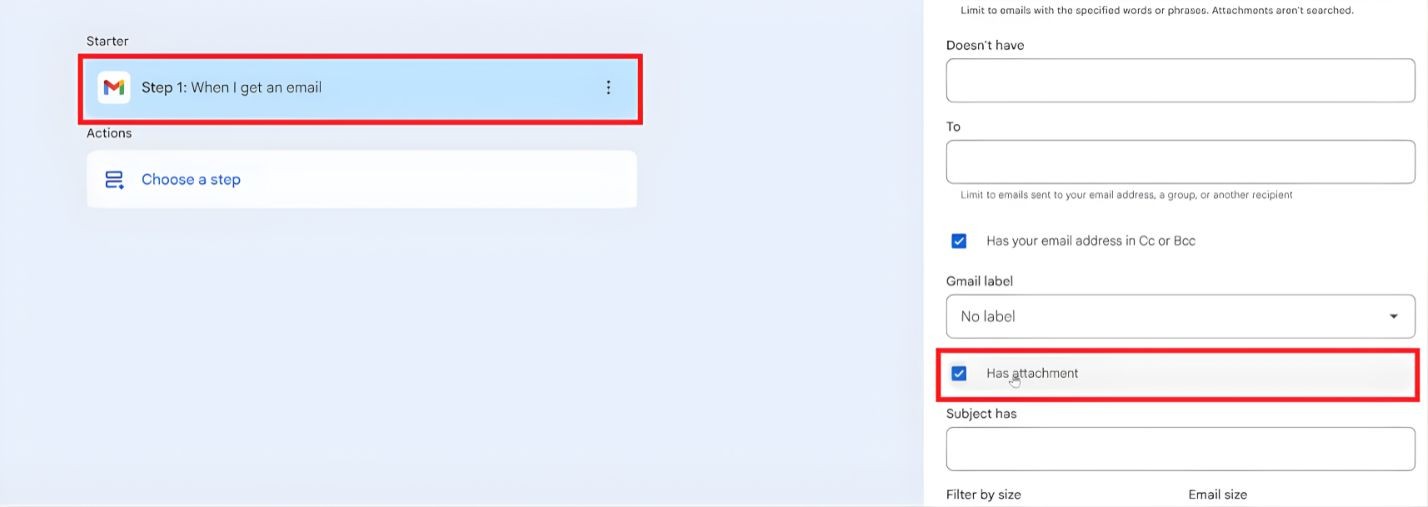
Step 2 — Adding the Action: In your workflow, add the step: "Add email attachments to Drive".
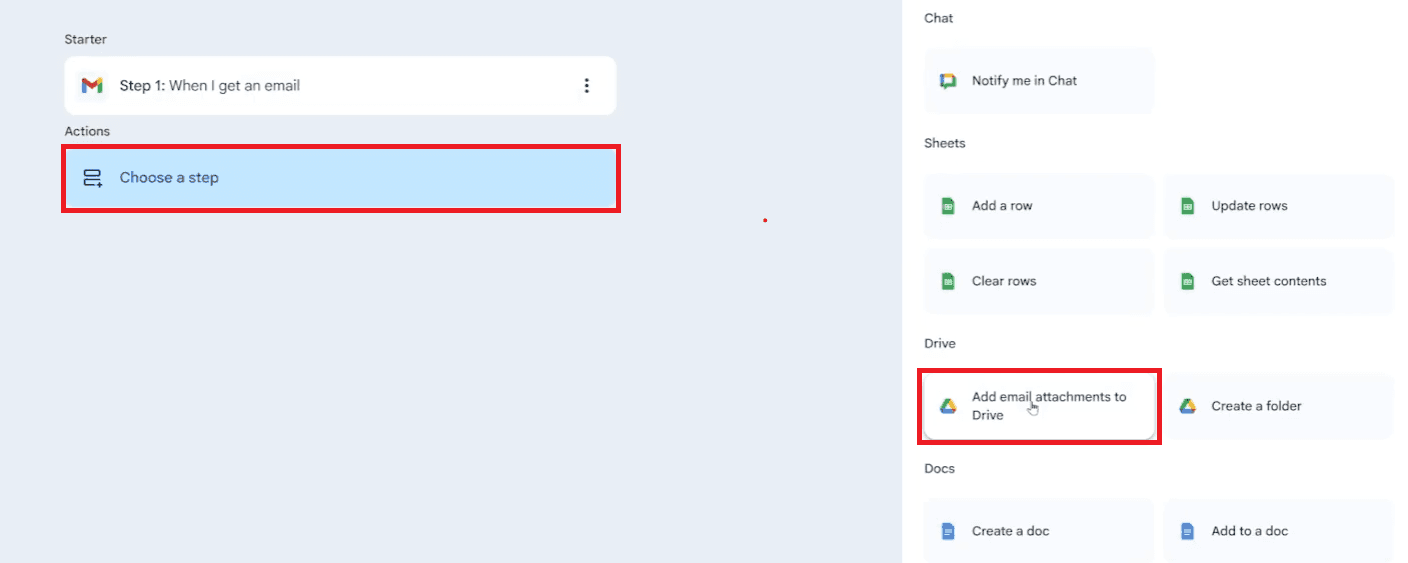
Step 3 — Pick Your Destination: Select your target folder (e.g.,
Email Attachmentswithin your Google Workspace domain.Step 4 — Link the Variables: In the "Gmail attachments" field, you must select the variable from Step 1. This tells the AI assistant exactly which files to grab.
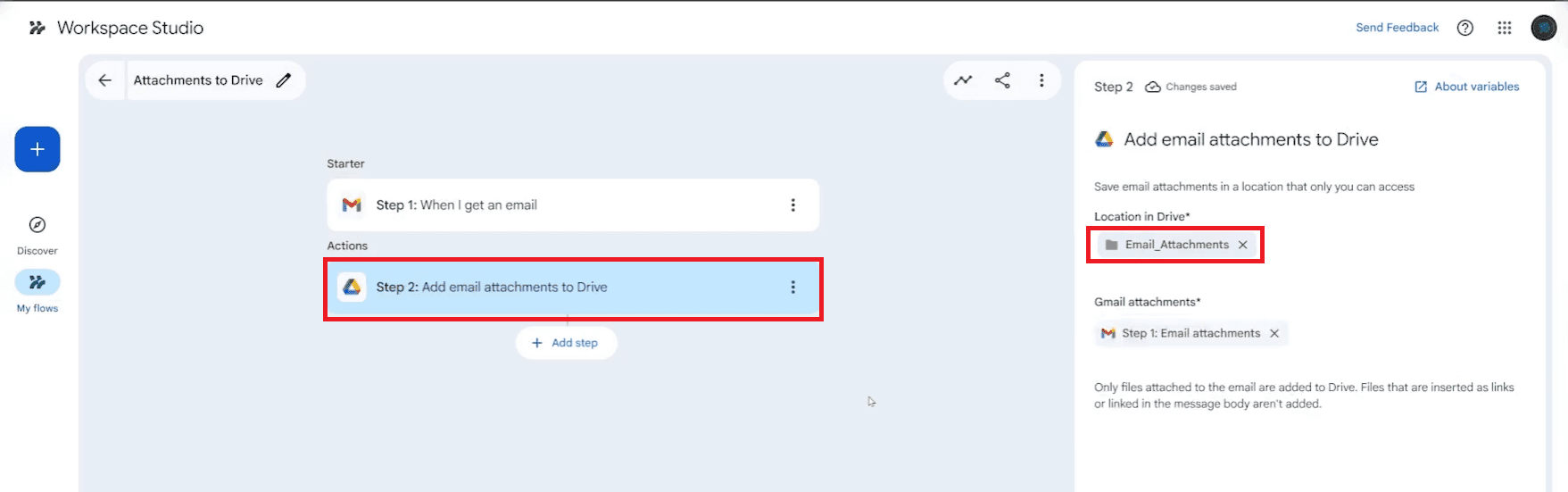
The Why: We use this specific filter to ensure the Super-Robot only wakes up when there is an actual file to process, keeping your business workflows clean and efficient.
✅ Best Practice: Create a dedicated folder for different types of Gmail attachments so they don’t just get dumped into a giant, messy pile in your Drive.
❌ Bad Habit: Manually downloading files to your desktop and then re-uploading them to Drive. It’s slow, it’s old-school, and it’s costing you money.
How To Extract Gmail Data To Google Sheets Using Gemini AI
The final move in your power play is turning a messy conversation into structured data. We are going to automate Gmail emails so they populate a spreadsheet for you. This turns your inbox into a database that you can actually use to make decisions.
Step 1 — Use the "Extract" Step: In your workflow, add a new action called "Extract".
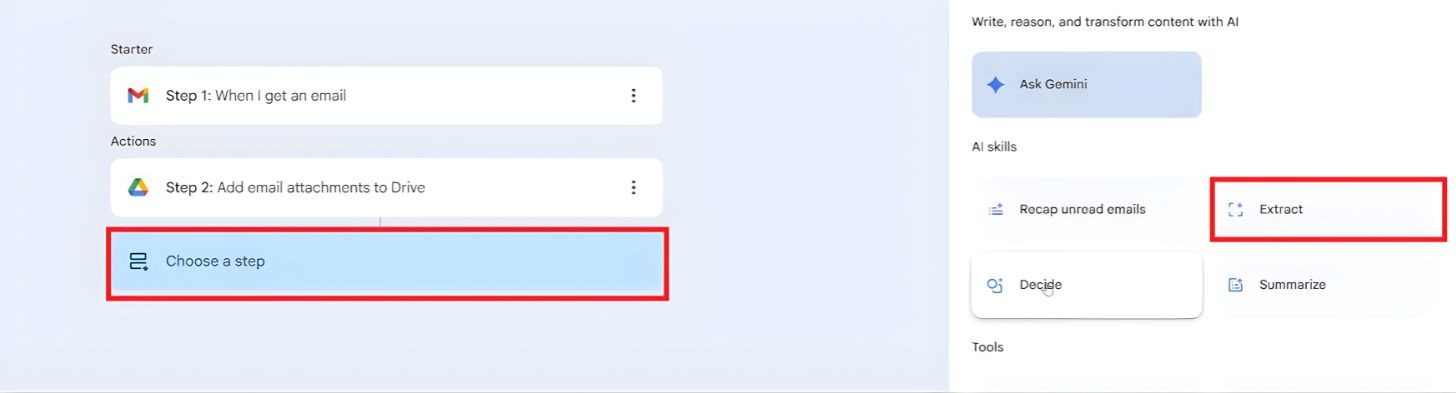
Step 2 — Define the Content: Tell the AI assistant what to look at. Map the "Body" and "Subject" from your Gmail Starter (Step 1) into this block.
Step 3 — Pick Your Variables: You can choose predefined options like "Sentiment Tone and Urgency" or create custom fields. For example, tell Gemini AI to extract "More Info" (additional details to help your team) and the "Issue Reported."
Step 4 — Log to Google Sheets: Add the action "Append Row". Select your target spreadsheet in your Google Workspace domain.
Step 5 — Map the Columns: Link your sheet columns (Name, Email, Issue, Tone, Urgency) to the variables extracted by Gemini AI in the previous step.
Column | Data Source | Purpose |
Sender | Gmail Header | Identify the contact |
Category | Gemini AI | Sort the work type |
Sentiment | Sentiment Analysis | Understand the mood |
Summary | Content Generation | Short email summaries |
You Might Like: How To Create an Automated Newsletter
Video Tutorial: How I Automated My Gmail
In this video, I walk you through the entire setup from scratch, showing you the exact visual builder interface. You will see exactly how to click through the interface and how to write the plain language prompts for your AI assistant in the "Description for Gemini" field. We cover everything from the basic Gmail trigger to the advanced logic used to extract meeting notes and data into Sheets. As per the source, this video is a masterclass in AI Enablement and shows you how to automate Gmail to turn your inbox into a productivity beast that handles repeatable tasks using the power of Gemini AI.
How Can Gemini For Google Workspace Assist You In Gmail?
If you are still reading every word of every email, you are losing. Gemini AI assists you in these critical areas:
Email Summaries: Instantly get an AI-generated summary of long, messy threads.
Drafting Replies: Use generative AI to turn three bullet points into a professional email.
Meeting Notes: It can identify meeting action items from a conversation and list them for you.
Finding Data: Use natural language to ask, "What was the price quoted in the 'marketing test' email?"
Sentiment Analysis: It flags "angry" emails so you can handle Customer data crises before they explode.
The Why: This assistance moves you from a "responder" to a "leader" by removing the friction of manual sorting.
Also Read: How To Send WhatsApp Bulk Messages
How To Level Up Your Gmail Automation and Gemini AI
Once you have mastered the basics, you are ready to automate complex work that goes beyond simple labels.
Explore Google Cloud: High-level users can use Object storage or a Serverless application platform to run massive automations.
Education Mastery: If you use Google Workspace for Education, these tools can handle grading queries or create Audio Overviews of lecture notes.
Enterprise Security: Using Gemini Enterprise gives you a privacy hub and DLP controls to keep your data safe.
Next-Gen Content: Use the Gemini app to play with Nano Banana and Nano Banana Pro models for video generation and other multimodal breakthroughs.
Frequently Asked Questions (FAQ)
1. How do I start to automate Gmail emails with Gemini AI?
Start by identifying one task, like saving invoices. Create a Gmail filter for those emails and then use Google Workspace Studio and Gemini AI to send those specific attachments to a Drive folder.
2. Can Gemini AI access my Gmail?
Yes, Gemini AI can access your emails to provide AI assistance. However, Google’s security and privacy controls ensure your Customer data is not used to train public AI models. You maintain control via the privacy hub.
3. Is Gemini AI included with Google Workspace?
Yes, Gemini AI is now integrated into most Google Workspace plans, including Enterprise and Education Plus. Institutions may also access these tools through a Google AI Pro for Education license.
4. Can Gemini AI read my email attachments?
Yes, it can. This is a massive multimodal breakthrough. You can ask Gemini AI to provide email summaries of a PDF attachment and put that data into your Google Sheets.
5. What happens if Gemini AI makes a mistake?
The Gemini AI is your co-pilot, not the captain. You should always set up a "Review" label. If the learning model output is unclear, the system moves the email to a folder for manual check. To automate Gmail emails effectively, you must stop making excuses and start building. Use Gemini AI, trust your co-pilot, and take back your time today.