10x Your Output: 5 Steps To Build Your Google Gems Super-Bot

Build your own Google Gems AI super-robot in 5 steps. These powerful AI agents automate repetitive tasks and supercharge your productivity instantly.
5 Secret Ways To Become Invincible At Work With Google Gems:
Discover how to build your own Super-Robot assistant using a Google Gem to handle boring chores while you sleep.
Learn why the world’s most successful people use X-ray vision tools to find information in seconds.
See how you can become invincible at work by automating every single task that used to make you frustrated.
Discover how to unlock a secret weapon inside your computer that writes emails and plans projects for you.
Learn why having a Google Gem as an AI co-pilot is the only way to stay ahead in a world moving faster than ever.
Stop wasting your life on tasks that a machine can do better. Most people are busy working but not creating real value.
They stick themselves in a loop of emails, data entry, and messy meeting notes. When you build a custom Google Gem, you break that cycle forever by automating the "busy work."
If you want to lead your industry, stop acting like a manual worker. Start acting like a conductor.
Google Gems are not just another tech feature; they help you move from being a worker to a system architect. This is your wake-up call to stop grinding and start scaling with the most powerful AI tools available today.
Table of Contents
Why Google Gems Are Gemini's Best-Kept Secret
Video Tutorial on Google Gemini Gems
What Are Google Gems And How Do They Work?
Google Gems For No-Code Builders
How Can You Improve Your Content Creation With Google Gems?
How Can Google Gems Help Your Team Work Faster?
Step-By-Step: Creating Your First Google Gem
Conclusion And Summary
FAQ
Why Google Gems Are Gemini's Best-Kept Secret
Most users treat AI like a search engine, asking it one-off questions and getting generic answers. That is a massive mistake that leaves money on the table.
The real power lies in Google Gems, which are purpose-built AI agents that you configure once to perform a specific job forever. Think of them as your invincible digital employees. They never get tired, never complain, and always follow your exact tone and style. By setting up custom Gems, you are building a library of expertise that lives inside your Gemini app.
You need a Secret Weapon to handle the flood of data hitting your desk every day. Whether you manage marketing campaigns, write a sales lead reply, or organise meeting notes, these AI tools give X-ray vision.
They help you see through the clutter. If you are not using Google Gemini Gems to automate repetitive tasks, you might be doing extra work.
You may also be getting fewer results. This is about AI assistance that actually understands your business context and your specific goals.
Video Tutorial on Google Gemini Gems
This video tutorial is a deep dive into the practical application of Google Gems within a real business environment. You will see exactly how to navigate the Gemini app interface to build custom agents from scratch. The video explains how to use natural language to write complex prompt instructions. It also shows how to link Google Drive to share needed context and resources.
It also demonstrates the video generation capabilities of Veo 3 and the high-speed processing of Nano Banana Pro. Whether you need a Task Manager, a brainstorm partner, or a Content Refiner, this video shows each step. It helps you avoid common beginner mistakes.
What Are Google Gems And How Do They Work?
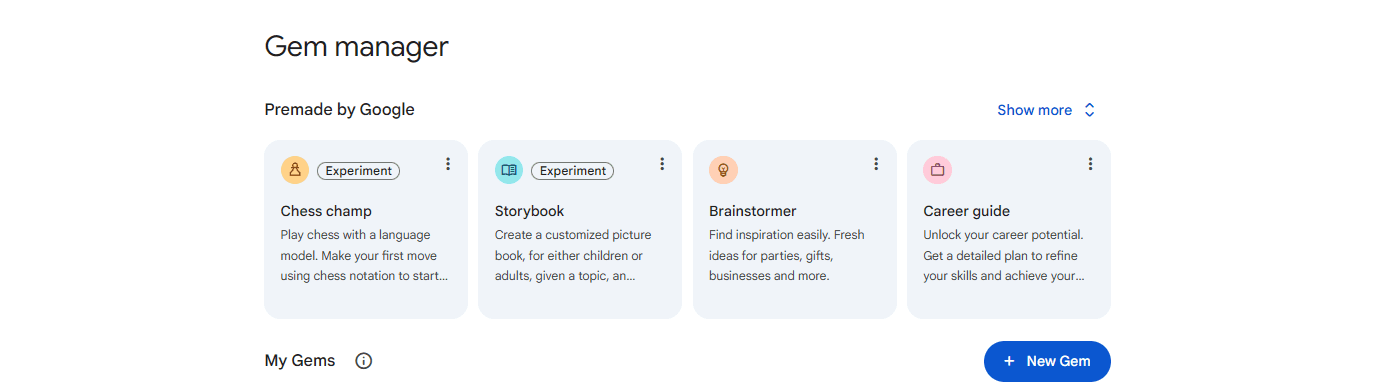
A Google Gem is a custom-made version of the Google Gemini model. It uses a specific Brand Persona and prompt instructions. Instead of typing the same context over and over again, you bake that information directly into the Gem.
This creates a virtual assistant that knows your company's history, your preferred formatting, and your specific expert knowledge. It is the difference between hiring a stranger each day and having a loyal partner who knows how you like things done.
The core mechanics involve three main pillars: your prompt instructions, your context and resources, and your enabled tools. You can attach files directly from Google Drive or Google Cloud to give the Gem a deep understanding of your projects. You can also enable a suite of prebuilt Gems for common tasks, such as a career coach or a writing assistant. The Gemini app lets these AI agents use natural language processing to turn messy ideas into polished content fast.
Feature | Function | Benefit |
Custom Gems | Personalised AI personas | Consistent tone and style |
Google Drive Integration | File-based knowledge | High-context AI assistance |
Side Panel | Quick access in Docs/Gmail | Faster Workspace applications workflow |
Video Generation | Veo 3 & Nano Banana Pro | Rapid training videos production |
Also Read: The secret 2027 browser everyone is starting to use
Google Gems For No-Code Builders
If you are a builder who hates writing code, Google Gems are your new best friend. You can create custom agents that work as a coding helper or Proposal Builder. You can do it without writing any syntax.
These AI tools use natural language to interpret your needs and generate logic, spreadsheets, or even app prototypes. By using Gemini in AppSheet, no-code builders can create complete systems. They can do this by describing what they want to their Super-Robot assistant.
✅ Best Practice: Always provide a clear "Failure Protocol" in your prompt instructions. Tell the Gem exactly what to do if it doesn't have enough information, such as "Ask me for the missing spreadsheet link."
❌ Bad Habit: Giving vague instructions like "be helpful." This is a waste of time and leads to "AI errors" where the AI makes things up.
The Why: Precise instructions ensure your virtual assistant stays on track and doesn't waste your time with irrelevant suggestions.
How Can You Improve Your Content Creation With Google Gems?
You can improve your content creation by stopping the manual "blank page" struggle. Instead of starting from scratch every time, you use a Marketing Copywriter Gem that already understands your audience. This Gem can take a rough outline and turn it into a full suite of assets for marketing campaigns.
By using a Content Refiner Gem, you can make sure every blog post, email, and social update matches your brand voice. This is not just about writing. It is about using X-Ray Vision to see what your audience wants to hear.
You can use video tools like Veo 3 to make training videos or promo clips from text prompts. When you use this with Nano Banana and Nano Banana Pro Image Generation, you get a complete creative agency. It is right in your side panel. This allows you to move from a Creative Idea Generator phase to a finished product in minutes.
As per research from Oxford University, experts believe that up to 40% of time spent on mundane chores and "grunt work" could be automated within the next decade.
By using Google Gems, you are tapping into this automation power right now to eliminate the repetitive tasks that slow down your content creation.
Also Read: Turn your rough sketches into 3D blueprints using AI
How Can Google Gems Help Your Team Work Faster?
Google Gems act as your team's Secret Weapon by taking over the boring tasks that slow everyone down. Instead of wasting time on video calls and forgetting what was said, these AI agents do the heavy lifting for you.
A Gem can join your Google Meet to write perfect meeting notes and Scheduled Actions immediately. This info flows right into Google Docs, Google Sheets, and Google Slides so the whole team stays on the same page.
You won't have to nag anyone for updates because AI assistance handles the tracking. This means your team spends less time talking about work and more time actually winning and getting things done.
With Gemini Enterprise, you get admin controls to share custom Gems with the whole company. This ensures every department is using the same powerful tools to stay organised and fast.
New hires can skip the OneIT Service Desk and ask a Career Guide Gem for help instead. This Gem knows every policy in the Help Centre and gives them the right answer in seconds.
This is how you build an Invincible team that gets results without you watching over their shoulder. You are giving them the tools to be high-performers while you focus on the big picture.
The Why: Automating chores ensures no important job is forgotten and lets you stop being a babysitter so you can be a leader.
Step-By-Step: Creating Your First Google Gem
Building your first Gem is the most important step in your automation journey. Don't overthink it; just follow this simple roadmap to get your first AI agent up and running.
Step 1: Open the Gemini App and Select Gems.
Navigate to the Gemini app (gemini.google.com) and look for the "Gems" manager in the side panel. This is your command centre for all your AI tools and custom agents.
How to do: Click on the "Gem Manager" icon to see your list of current bots.
What to do: Select "Create a Gem" to start your new project.
The Why: You need a dedicated space to manage your agents so they don't get mixed up with general chats.
Step 2: Define the Persona and Instructions.
Click "New Gem" and give it a name like "Marketing Copywriter" or "Sales Lead Specialist." In the prompt instructions box, describe exactly who this Gem is and what its goal is.
How to do: Type your description into the "Instructions" text area.
What prompt to use: Use a system prompt like: "You are an expert Marketing Copywriter with 20 years of experience. Always use a professional tone and style."
The Why: Setting a persona gives the AI a framework for how to speak and act.
Step 3: Attach Context and Resources
Click the plus icon to upload files from Google Drive or your computer. This provides the expert knowledge the Gem needs to be useful for your specific business.
How to do: Use the "Upload" or "Add from Drive" button inside the Gem builder.
What to do: If you are building a Proposal Builder, upload your last five winning proposals as examples.
The Why: AI is only as smart as the data you give it; real examples prevent AI errors.
Step 4: Enable Tools and Capabilities
Toggle on features like video generation, Smart Fill with AI, or Deep Research. These allow your Gem to actually perform actions inside your Workspace applications, not just talk.
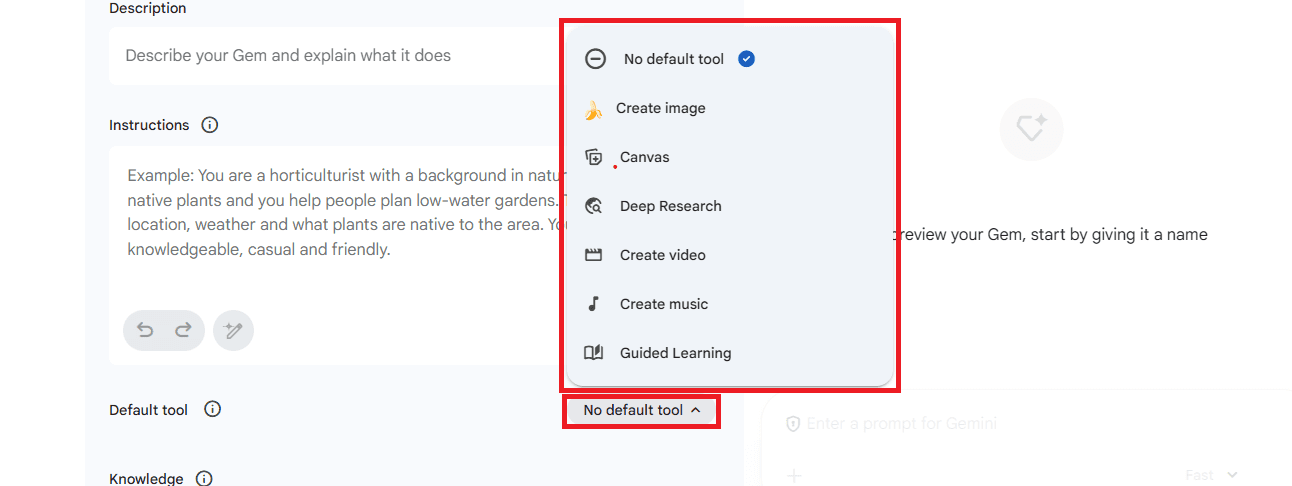
How to do: Check the boxes for the specific tools you want the Gem to use.
What to do: Enable "Google Search" if the Gem needs to find live information.
The Why: Tools turn your Gem from a simple talker into a high-powered doer.
Step 5: Test, Refine, and Save
Enter a test prompt in the preview window to see how your Super-Robot performs. If the output is too long or messy, add a new instruction to fix it.
How to do: Type a request in the "Test" box and hit enter.
What to do: If the answer is too long, add: "Keep all responses under 200 words and use bullet points."
The Why: Testing reveals the "bugs" in your instructions before you start using the Gem for real work.
Warning: Do not skip the testing phase. If you save a Gem with poor instructions, you will get poor results every time you use it, which defeats the purpose of automation.
Also Read: Build your meeting 'Second Brain' for 2027
Conclusion And Summary
The era of manual, repetitive tasks is over. If you are not using Google Gems to boost your Google Workspace productivity, you are choosing the slow lane.
These AI agents are the Secret Weapon that allows you to do the work of ten people with a fraction of the effort. By creating custom Gems, you prepare your career for the future.
By refining your Brand Persona, you strengthen how you present yourself.
By adding AI tools to your daily Workspace apps, you work smarter every day.
Stop making excuses about not having enough time. Use Google AI Pro for Education or Gemini Enterprise to build your Invincible team of virtual assistants today. The technology is here; the only question is whether you are smart enough to use it.
FAQ (Frequently Asked Questions)
What exactly is a Google Gem?
A Google Gemini Gem is a tailor-made version of Gemini AI. You can set it up with specific instructions, a personality, and knowledge. It works as a permanent virtual assistant in the Gemini app.
It lets you automate repeat tasks, like drafting marketing campaigns or summarising meeting notes. You do not need to repeat your instructions each time.
How do I use Google Gems in Google Docs?
You can access your custom Gems through the side panel in Google Docs. This allows you to get writing help or use a Content Refiner directly on your active document. It is a seamless way to bring AI assistance into your existing Workspace applications workflow.
Is my data safe when using Google Gems with Google Drive?
Yes, Google Gemini and Google Gems use strict, enterprise-grade security controls. This is most true for Gemini Enterprise and Google Cloud users. Your Gem uses your Google Drive data as context and resources. Public AI models do not use it for training. This helps keep your expert knowledge private.
Can Google Gems create videos or images?
Yes. Enable tools like video generation (Veo 3) and image generation (Nano Banana). Your Gems can then create high-quality visual content. This is perfect for creating training videos or social media assets as part of your content creation strategy.
Do I need to know how to code to build a Gem?
Not at all. You build custom agents entirely through natural language. You just talk to the Gem creator like a no-nonsense business mentor. Tell it exactly what you need it to do. It is a true no-code solution for AI experts and beginners alike.