How to Automate Scheduling with Elevan Labs & n8n | Ritz7
Jan 13, 2026
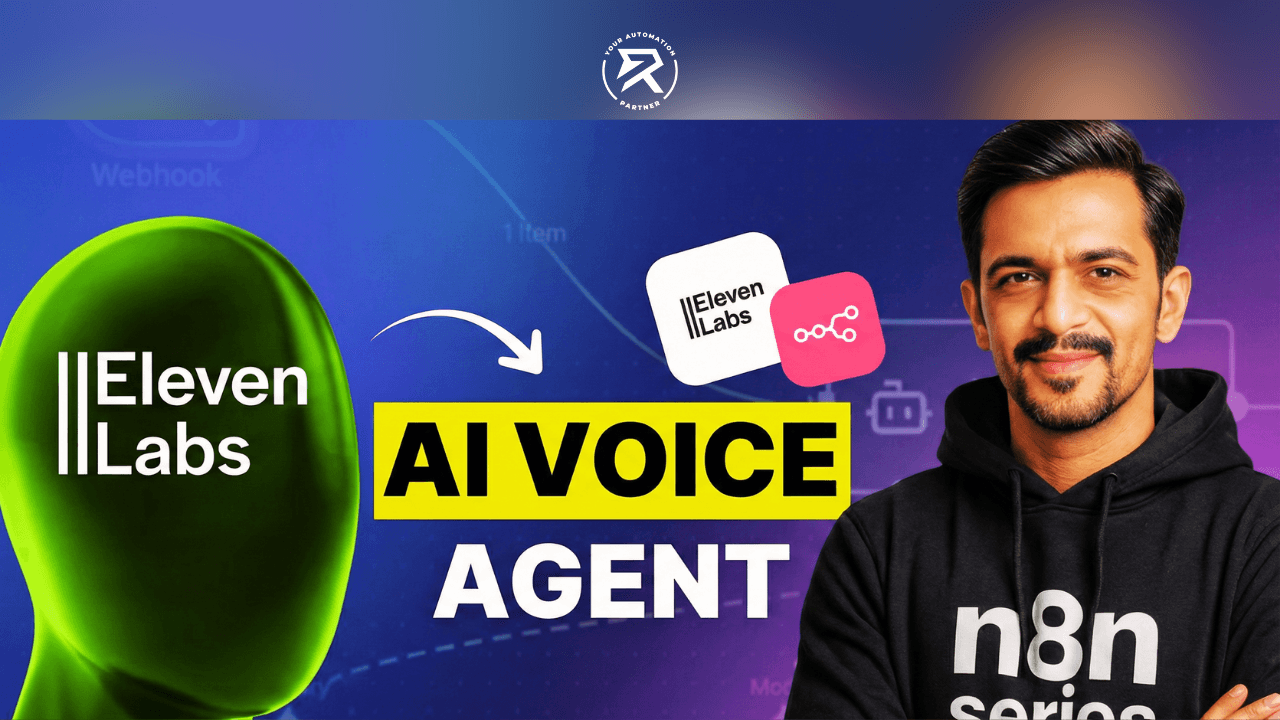
Table Of Contents:
Phase 1: Constructing the "Brain" in n8n
Phase 2: Setting Up the AI Agent (Tool Configuration)
Phase 3: Configuring the ElevenLabs Voice Agent
Phase 4: The Integration Handshake
Video Tutorial on How to Automate Scheduling Using AI
Phase 5: Testing the Workflow
Phase 6: Security and Advanced Scaling
Conclusion
FAQ: Common Questions on AI Scheduling
Welcome to the future of workflow automation. In this guide, we move beyond text-based chatbots to build a fully functional voice interaction agent.
By combining n8n workflows with Eleven Labs' realistic voice AI, we can build a smart assistant that actually gets things done. This guide shows you how to create an agent that checks your Google Calendar instantly, talks to users to agree on a time, and books appointments automatically
Phase 1: Constructing the "Brain" in n8n
The core logic resides in n8n workflows. Instead of dragging nodes manually, we will leverage n8n's Build with AI feature to generate the complex agent structure instantly.
1. Generate the Workflow with AI
Start by creating a new empty workflow.
Select "Build with AI": Click the magic wand icon on the canvas to open the assistant.
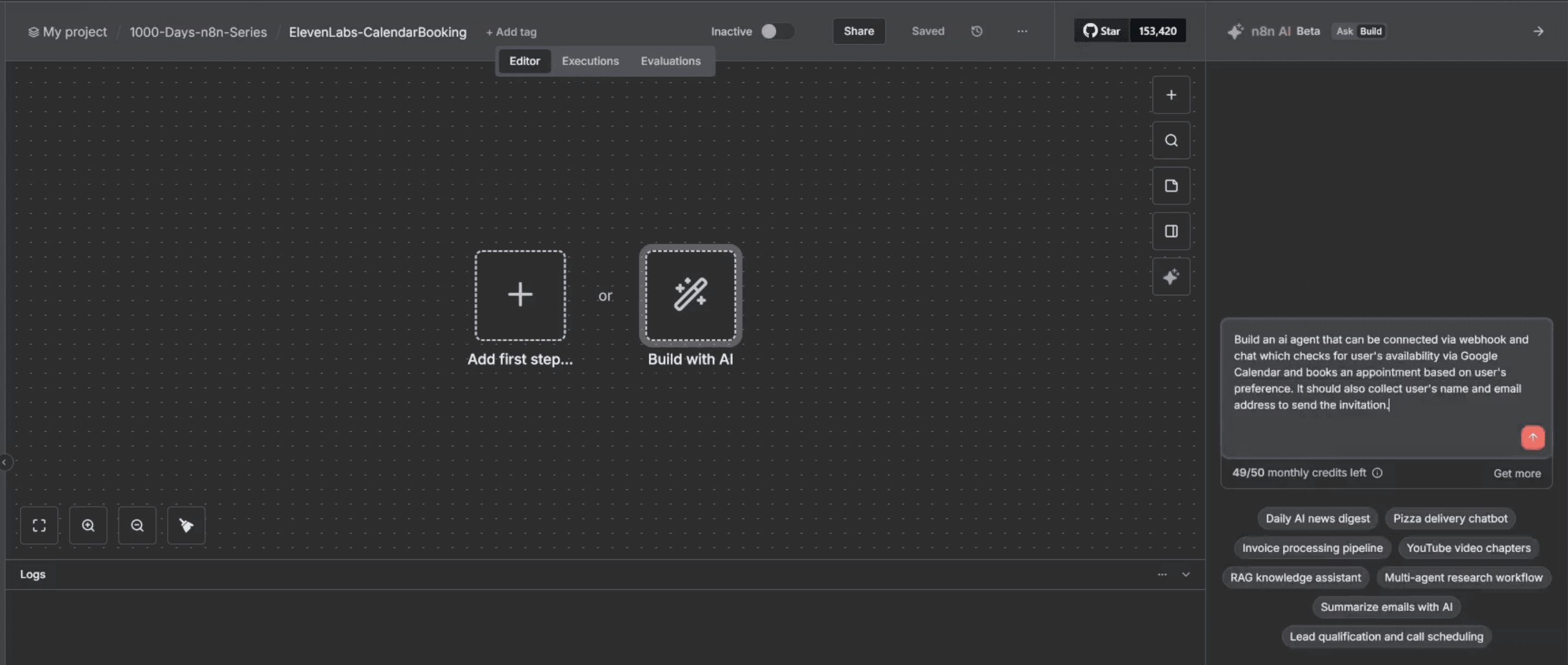
Input the Prompt: Use the following command to define the agent's capabilities:
"Build an ai agent that can be connected via webhook and chat which checks for user's availability via Google Calendar and books an appointment based on user's preference. It should also collect user's name and email address to send the invitation."
Generate: Hit enter, and n8n will automatically construct the complete node architecture for you.
2. Review the Generated Architecture
Once the AI finishes, you will see a structured workflow containing these specific components:
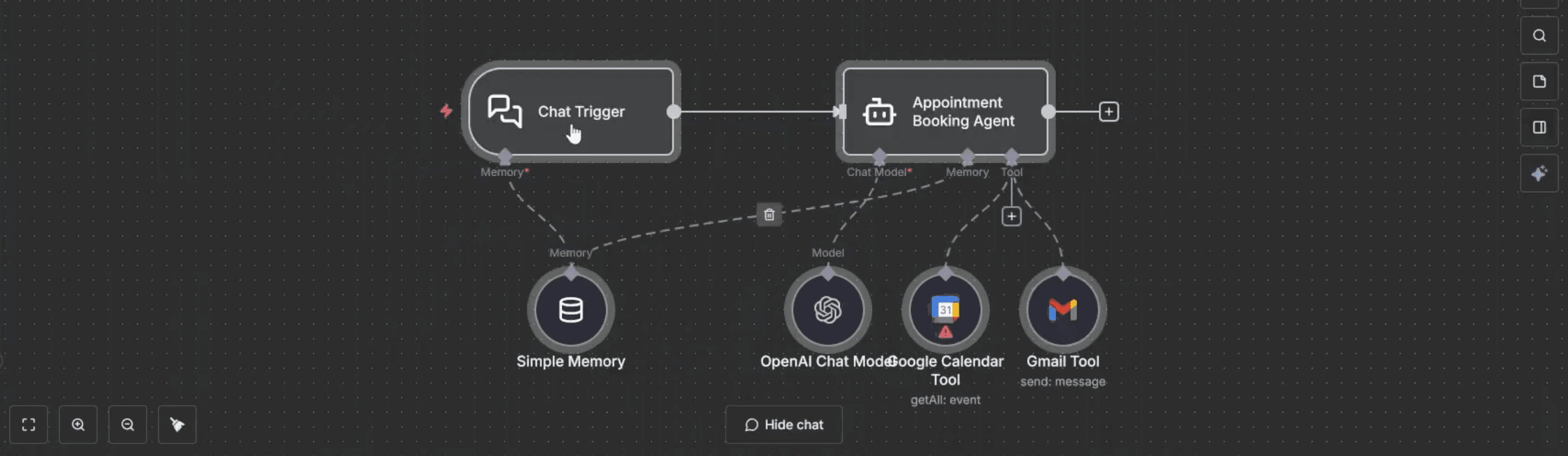
AI Agent node: The central brain (likely named "Appointment Booking Agent") that orchestrates the logic.
Chat Model: Connected to the agent (e.g., GPT-4o) to handle reasoning.
Simple Memory: A Conversation Memory Node attached to store user details like name and email throughout the chat.
Tools: The AI automatically attaches the necessary internal tools:
Google Calendar Tool: Configured to read availability and write new events.
Gmail Tool: Added to send confirmation emails.
3. Refine the System Prompt
While the AI builds the structure, you must refine the behavior. Double-click the AI Agent node and update the System Prompt with these strict constraints:
Availability: "Only offer slots between 9:00 AM and 6:00 PM, Monday through Friday."
Data Collection: "You must collect the user's Name, Email, and Meeting Purpose before booking."
Duration: "Offer 30 or 60-minute slots."
Tone: "Act as a professional scheduling assistant."
Note: You will also need to authenticate the Google Calendar and Gmail nodes with your specific account credentials before testing.
Also Read: Automate Email Replies from Form Submission in n8n
Phase 2: Setting Up the AI Agent
The core logic resides in n8n. Unlike simple linear automations, we need an AI Agent node capable of reasoning and using tools.
1. The Architecture
Start by creating a new workflow. While you might initially test with a "Chat Trigger," for the final voice integration, we will rely on Webhook Activation.
The Model: Connect a powerful Chat Model (like GPT-4o) to handle the conversation nuances.
Memory: To ensure the agent remembers the user's name ("Harsha") and context ("Collab opportunity"), attach a Conversation Memory Node or use Memory buffers.
2. Tool Configuration
The agent needs direct access to your schedule. We integrate the following internal tools:
Google Calendar Tool:
Operation 1 (Read): "Get Availability" to check free/busy slots.
Operation 2 (Write): "Create Event" to book the confirmed slot.
DateTime Tool: Essential for parsing relative terms like "next Tuesday" or "tomorrow afternoon."
Gmail Tool: (Optional) To send a backup confirmation email, though the Calendar tool can handle invites directly.
Also Read: Step-by-Step Guide: Create a Telegram-Calendar Bot in n8n
Phase 3: Configuring the ElevenLabs Voice Agent
Now we configure the text-to-speech service interface.
1. Agent Setup
Navigate to the Eleven Labs Agents Platform:
Create Agent: Select a blank template (e.g., "Booking Agent").
Voice Selection: Choose one of the high-quality AI voice models that fits your brand—perhaps a professional tone for customer support or a casual tone for creative inquiries like video production.
First Message: Set a welcoming greeting: "Hello, I'm here to help you schedule a meeting. What time works best for you?"
2. The "Get Availability" Tool
To connect the voice to the brain, we create a custom tool in ElevenLabs that triggers an API Call to n8n.
Tool Name:
getAvailability.Description: "Use this tool to check user availability and book slots."
Method: POST.
URL: Paste your n8n Production Webhook URL.
Arguments: Define a JSON schema to capture the user's spoken request (e.g.,
request_transcript,client_name).
Also Read: n8n Tutorial: How to Create an OpenAI Assistant (easy guide)
Phase 4: The Integration Handshake
The video highlights a specific technical challenge: formatting the response. The Eleven Labs agent listens for a text response to read aloud. If n8n returns raw JSON, the agent will read curly braces and key names, which sounds robotic.
How to Format the Response in n8n:
Switch Trigger: Ensure your n8n workflow starts with a Webhook Node (POST method), not a chat trigger.
Process Logic: The AI Agent node processes the availability check.
Respond to Webhook Node: Add this node at the end of the workflow.
JSON Response: Configure the "Respond to Webhook" node to output a clean string found in the AI's final output property.
Example Output: "I have checked the calendar. Thursday at 12:30 PM is available. Shall I book it?"
This ensures the multilingual spoken reply is fluent and natural.
Video Tutorial on How to Automate Scheduling Using AI
Phase 5: Testing the Workflow
In the transcript demonstration, the user ("Harsha") interacts with the agent:
User: "I'd like to book a slot for a collab opportunity tomorrow."
Voice Agent: Captures the audio, converts to text, and sends an API Call to n8n.
n8n: The Google Calendar Tool checks availability, sees the slot is free, and books it.
Confirmation: The agent confirms: "Your meeting is confirmed for 12:30 PM. A Google Meet link has been sent to your email."
This loop demonstrates a complete voice-driven workflow handling complex logistics like time zone conversion (IST) and email verification.
You Might Like: 5 Ways to Make Money with n8n AI Automation | Ritz7
Phase 6: Security and Advanced Scaling
When deploying this tech stack for enterprise use, security is paramount.
Security Best Practices
Credential Management: Never hardcode sensitive data. Use n8n's credential management system.
Authentication: As noted in the video, enable Basic Auth, Header Auth, or JWT on your webhook to prevent unauthorized access.
Infrastructure: If you are self-hosting n8n, ensure your server is secure. Be aware of the ingress nginx controller vulnerability (CVE-2021-25742), which can expose webhooks if not properly patched.
Advanced RAG Capabilities
To take this further, you can transform the scheduler into a Voice RAG Chatbot.
Knowledge Base: Store your company policies or pricing in a Qdrant Vector Store.
Embeddings: Use Embeddings OpenAI to vectorize this data.
Retrieval: Add a Vector Store Tool to your agent. Now, before booking, the agent can perform Knowledge Base Retrieval to answer questions like "What are your consultation fees?"
Conclusion
By integrating Eleven Labs with n8n workflows, you create a powerful Multimodal AI experience. This setup not only impresses clients with seamless voice interaction but also drastically reduces the administrative overhead of manual scheduling.
Ready to start? Begin by setting up your Google Calendar Tool in n8n and generating your first API Access token in ElevenLabs.
FAQ: Common Questions on AI Scheduling
Q: Can I integrate this with other systems?
A: Yes. The beauty of n8n is its extensibility. You can connect CRM systems like HubSpot, Salesforce, or even Google Sheets to log website visitors and call details automatically alongside the calendar booking.
Q: Does this support different languages?
A: Absolutely. ElevenLabs supports robust multilingual spoken reply capabilities. The underlying model detects the input language (e.g., Spanish) and can respond in the same language dynamically, making this a global solution.
Q: How do I handle audio files?
A: You don't have to. ElevenLabs handles the heavy lifting of audio file processing (hosting, streaming, decoding) internally. You only need to manage the text-based payload via the webhook, which keeps your n8n workflow lightweight.
Q: Is the API key secure?
A: Your API key is as secure as you make it. It should be stored in n8n's encrypted credential store. Never expose it in the workflow canvas notes or commit it to public GitHub repositories.